Traffic control.All in one app.

Used by 2 BC traffic control companies since September 2026 · 25 people on it

This is how most traffic control companies are managed today:

A messy whiteboard, 7 group chats, a stack of documents, 3 missing timesheets (since Tyler ran out) and sent his hours over text.

A whiteboard. First it is blank, with one line written on it: this is how most traffic control companies are managed today. Then it fills with the dispatch board itself, drawn in marker: five jobs with crew names, one name crossed out, a night shift one person short, and notes asking who has answered. Once it has settled, the notes column fills in one note at a time with what the board costs: it is only on this wall, the crew cannot see it, nobody was told when it changed, it keeps no record, and it is wiped again tomorrow.DISPATCHThurs Sept 17JOBSTARTCREWPROBLEMSAlder Creek culvert7:00Wes, Kayla, Lucy225 Industrial Way7:00Fiona, Hana, Diego, RaviCorridor closure7:00Terrence*, Sam, Andre,Victoria Dr corridor7:00CaseyPole replacement7 PMPriya, Elena,only on this wallcrew can't see itnobody told Danaor Nina?no record of itwiped again tomorrowDanaNina?who confirmed for 6am??group text TerrenceTyler has no more timesheets!!call Marcusback re: Sat
The board at 5:30 a.m. By 6:15 it's already out of date.
A group text per job. Nothing you can search, and no way to know who actually read it.
Invoices, plans, contracts and safety forms typed up again by hand later, and the timesheets that never came back.

The same day, on Pylon.

  1. Step 1Schedule jobsIn the office

    Phone rings, you open the app.

    Book the call in while they're still on the phone, then fill the day with the people you have.

    Replaces the whiteboard and the dispatcher's desk. One owner can run the whole day.

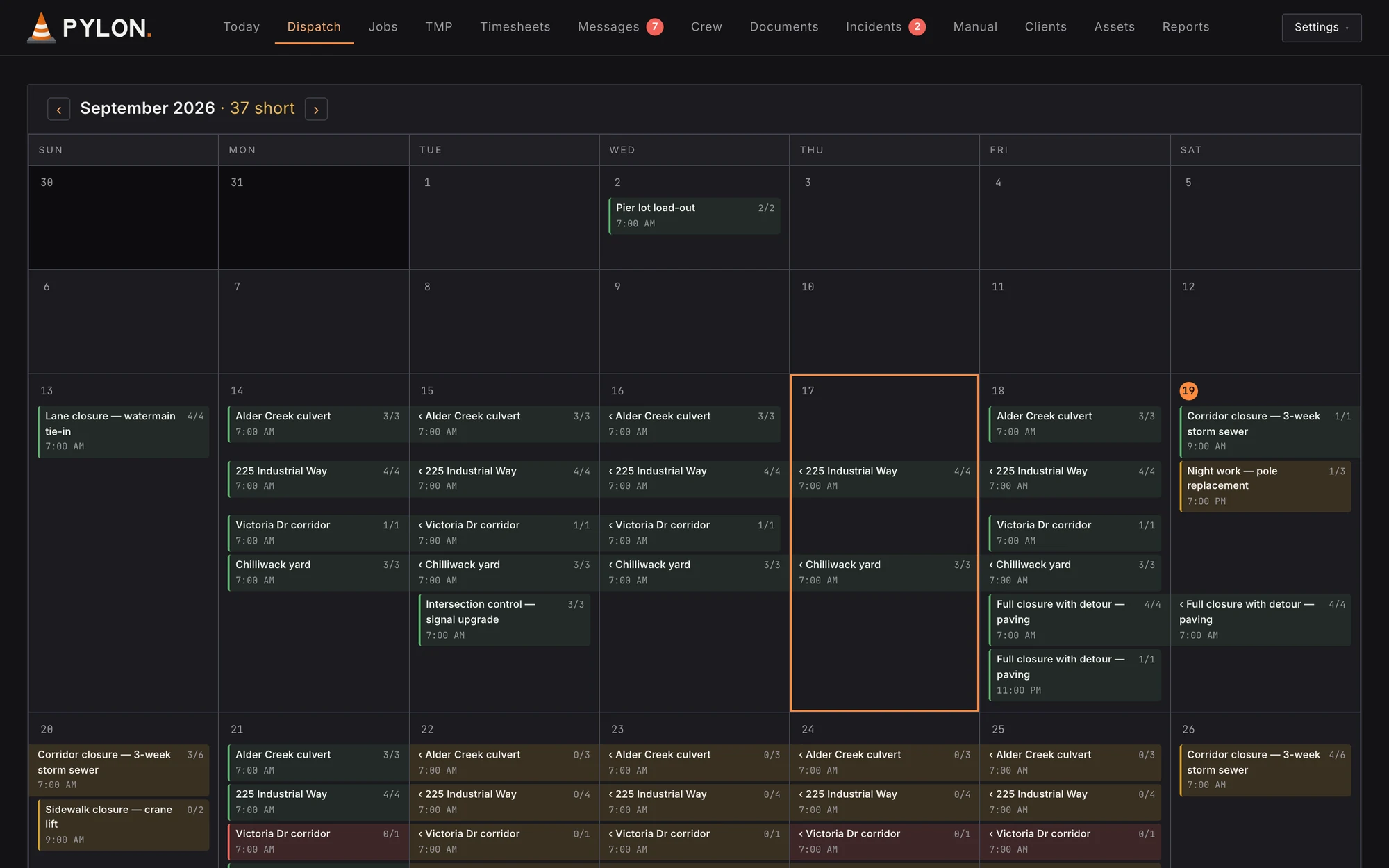
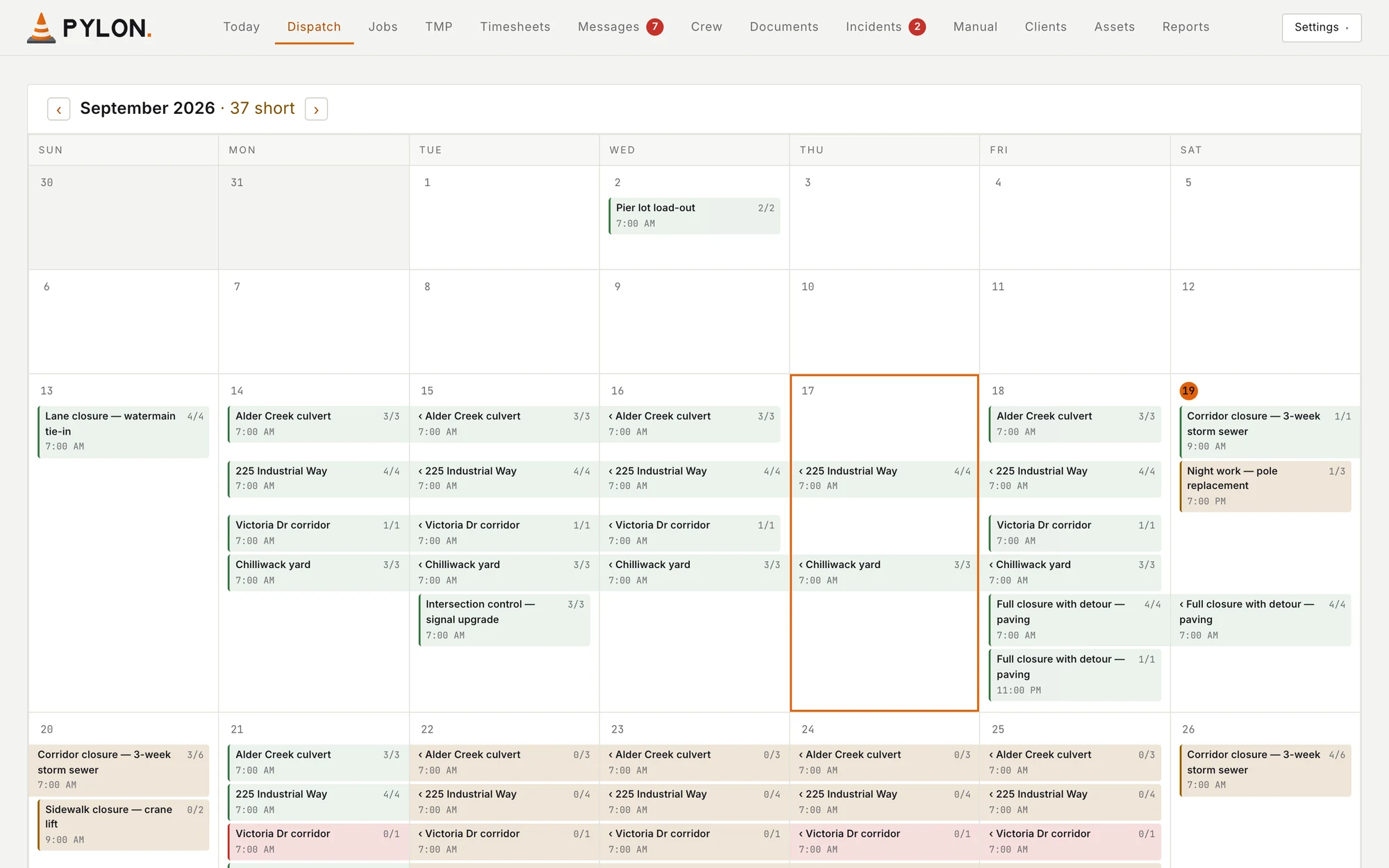
    The dispatch board in Month view for September 2026: every job on every day, and how many shifts are still short. Thursday the 17th is picked, with its 2 jobs, 225 Industrial Way and Chilliwack yard. Sample data.
  2. 1 of 4

    See the week, pick the start day.

    Every day at a glance, and how many people you're still short. The day you pick is the day the job starts on.

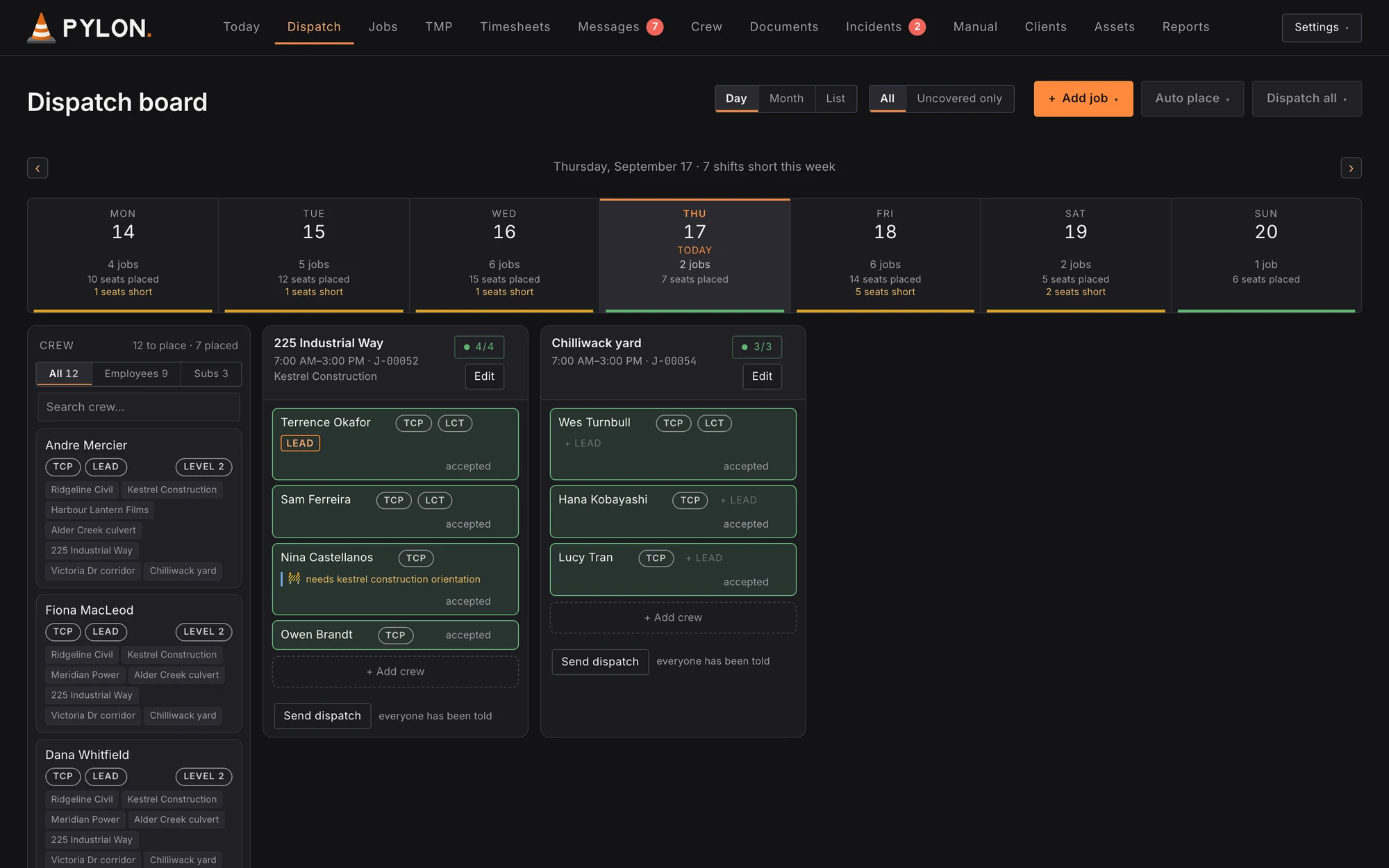
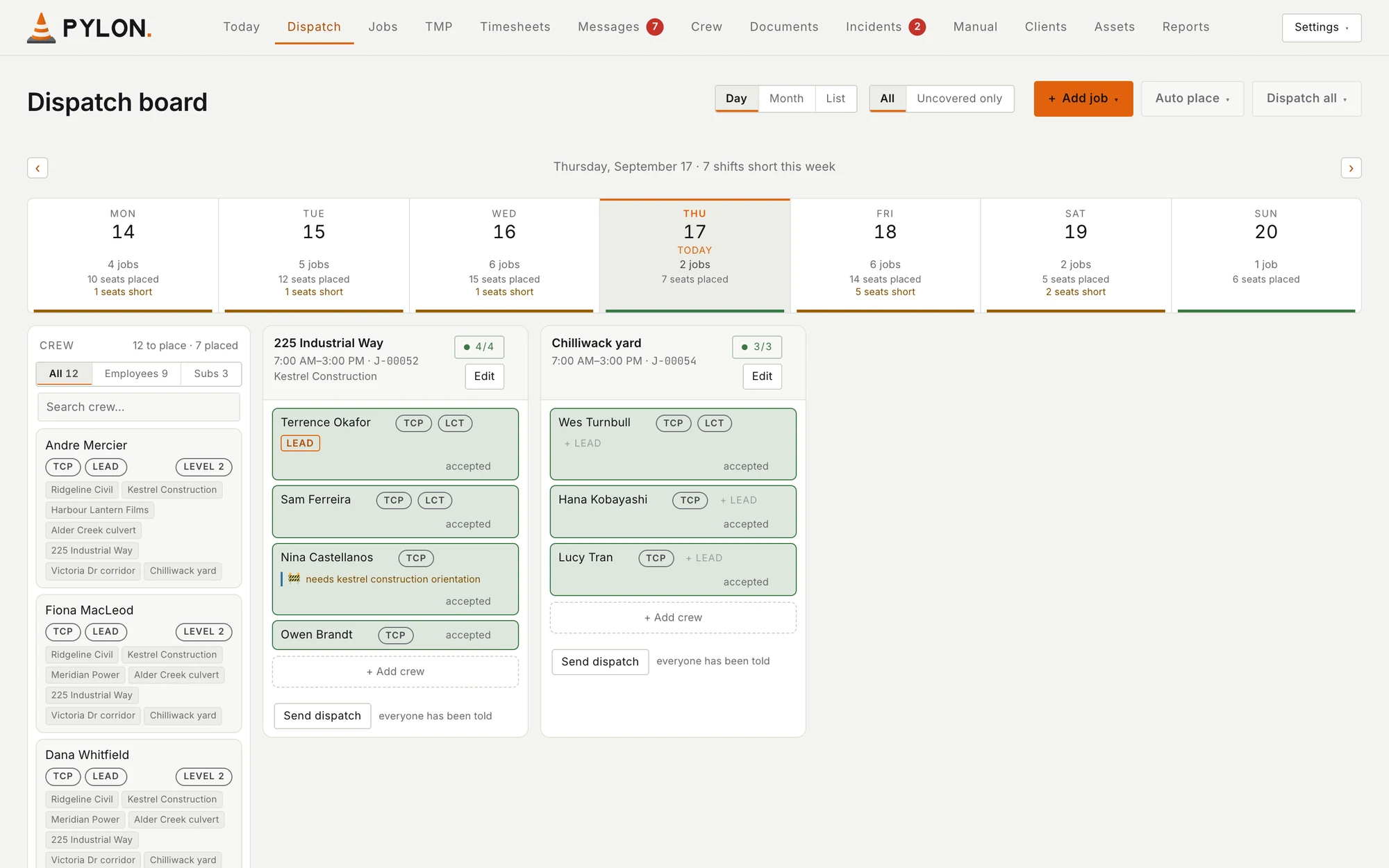
    Dispatch board in Day view with Thursday, September 17 picked. The week strip across the top shows jobs, seats placed and seats short for each day; Thursday has 2 jobs and all 7 seats placed. Sample data.
  3. 2 of 4

    Add the job.

    A new call comes in. Add job books it on the day you picked, or adds another day to a job already running.

    The Add job menu open on the Thursday, September 17 board: Add to Thu, Sep 17, with Auto (continue 2 jobs from yesterday; 2 are already on this day) and New job, to book a job or add another day to one. Sample data.
  4. 3 of 4

    Crew the job in 2 clicks.

    Auto place offers two ways to fill it: the last crew on each job, or your most senior people.

    The Auto place (3) menu open over the Thursday, September 17 board: under Fill by it offers Last crew on each job or Most senior first. The new 64 Ave water main job waits beside it at 0 of 3 crew. Sample data.
  5. 4 of 4

    Problems flagged first.

    Pylon warns you about short rest, days off and missing orientations before anything is sent.

    The Thursday, September 17 board after Auto place: Terrence Okafor, Andre Mercier and Fiona MacLeod are placed on the 64 Ave water main job but not told yet, and Terrence is flagged for less than 8 hours' rest because his day on 225 Industrial Way ended at 3:00 PM. On 225 Industrial Way, Nina Castellanos is flagged as needing the Kestrel Construction orientation. Sample data.
  1. Step 2Build traffic plansOffice and crew

    Traffic plans in a few clicks. Ready to print.

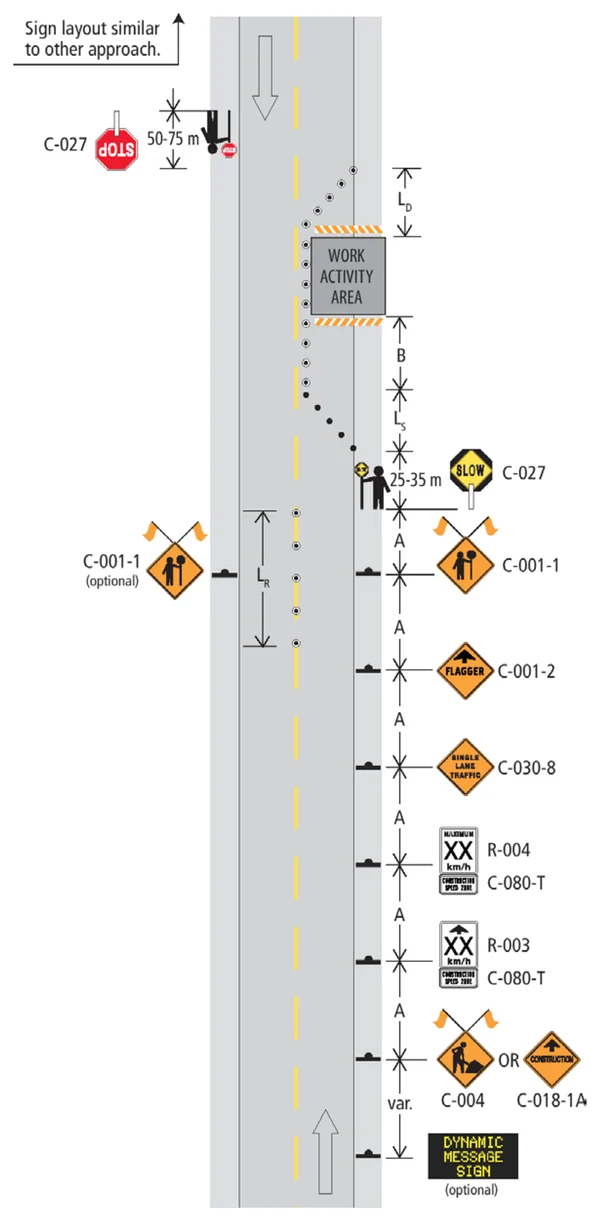
    Figure 7.8.2 in the BC Traffic Management Manual: a lane closure with TCPs and a speed reduction, drawn on a straight road, with the distance between signs given as the letter A.

    In the TMM Figure 7.8.2, drawn on a straight road, with letters for the gaps.

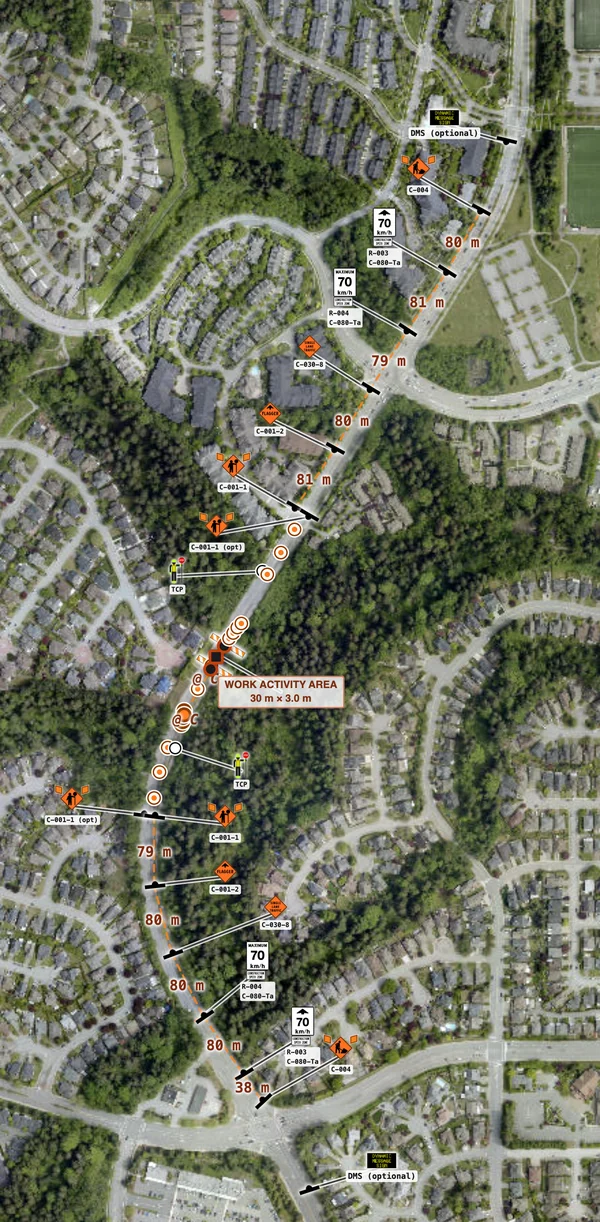
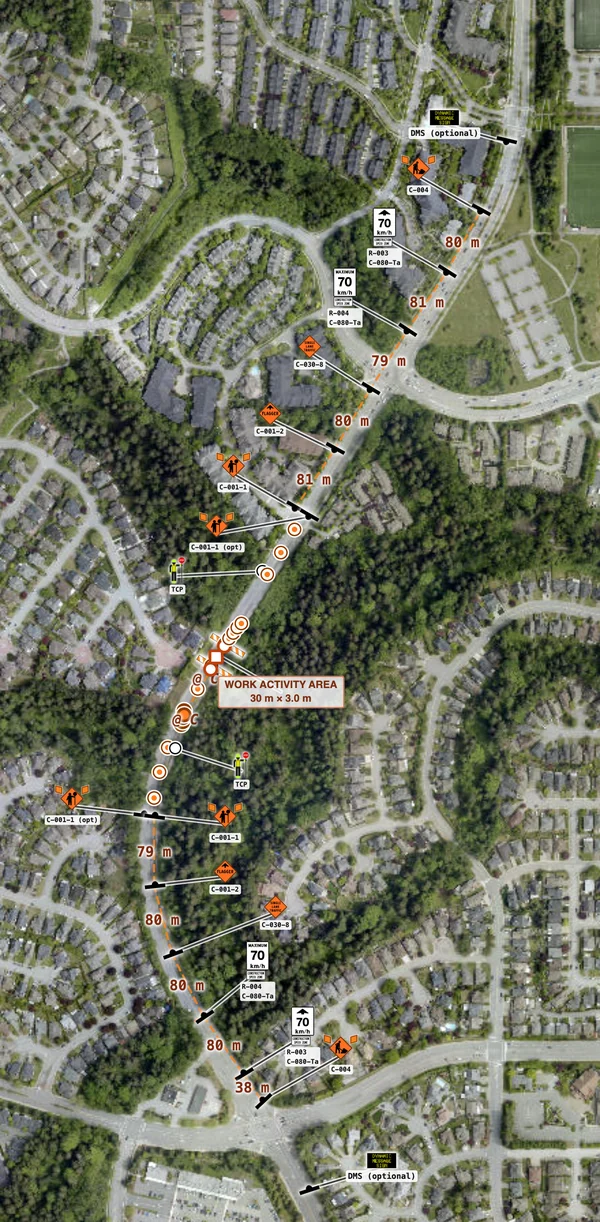
    The same Figure 7.8.2 layout in Pylon's plan builder, snapped to the curve of David Ave in Coquitlam at 70 km/h, each gap between signs measured in metres, most of them 79 to 81 m. Sample plan.The same Figure 7.8.2 layout in Pylon's plan builder, snapped to the curve of David Ave in Coquitlam at 70 km/h, each gap between signs measured in metres, most of them 79 to 81 m. Sample plan.

    In Pylon Snapped to David Ave at 70 km/h, with every gap in metres.

    112 standard layouts from the TMM come preloaded. Edit any of them, and save your own as presets.Figure 7.8.2 from BC's Traffic Management Manual for Work on Roadways, 2020 edition. © Province of British Columbia.
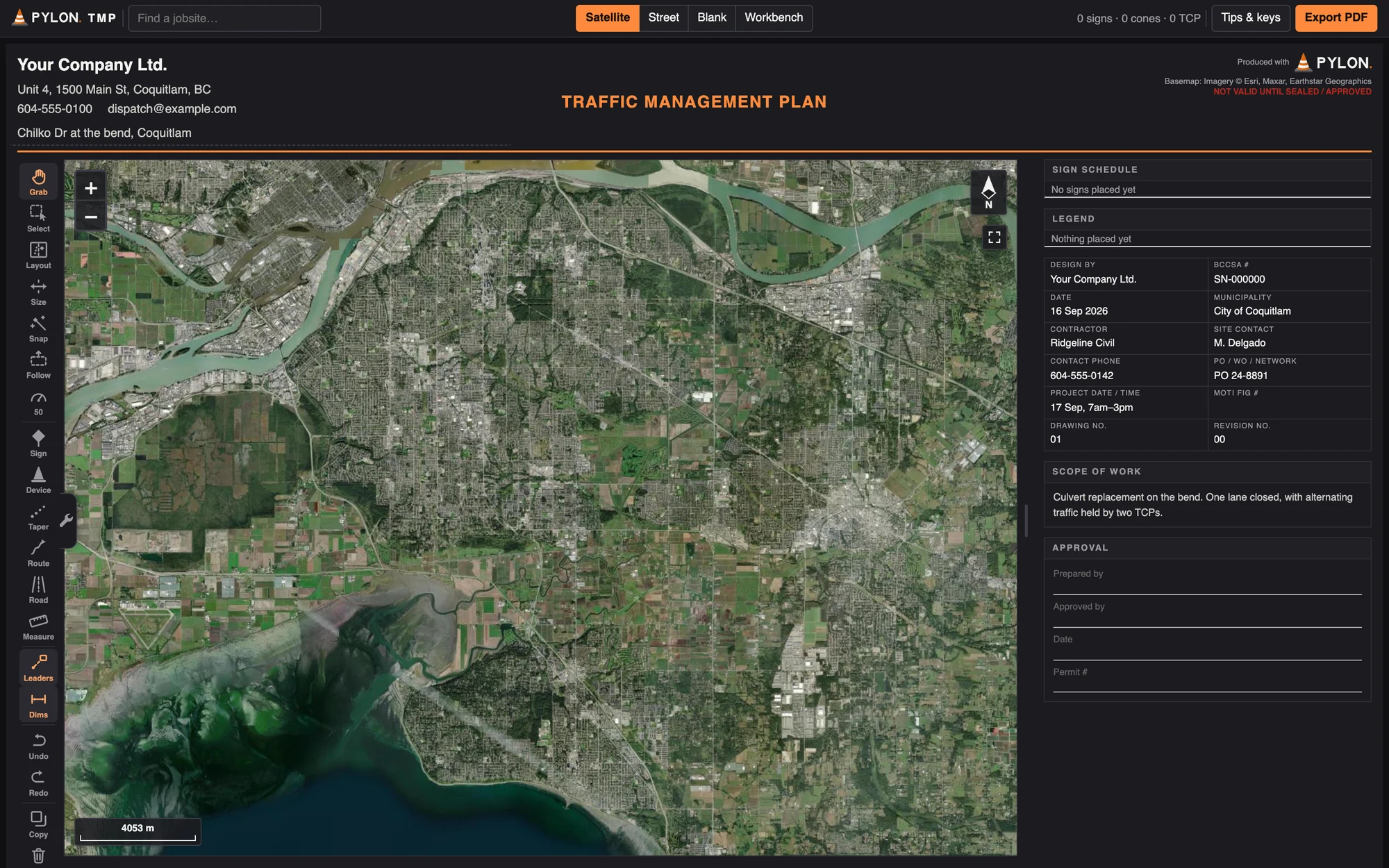
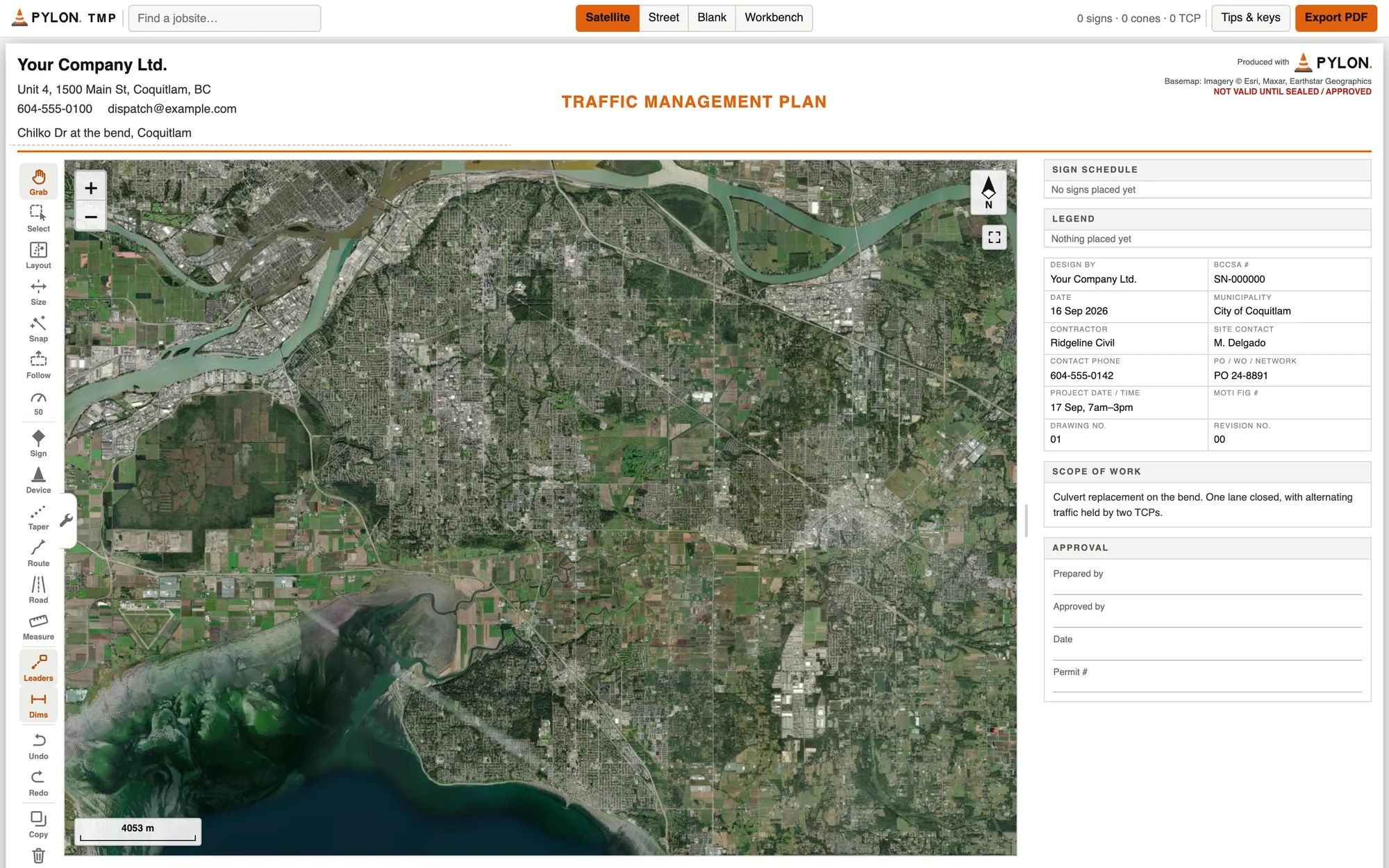
    The plan builder before a search: the job's details already on the sheet, the find-a-jobsite box empty, and a satellite map of Surrey. Sample data.
  2. 1 of 6

    Find the job site.

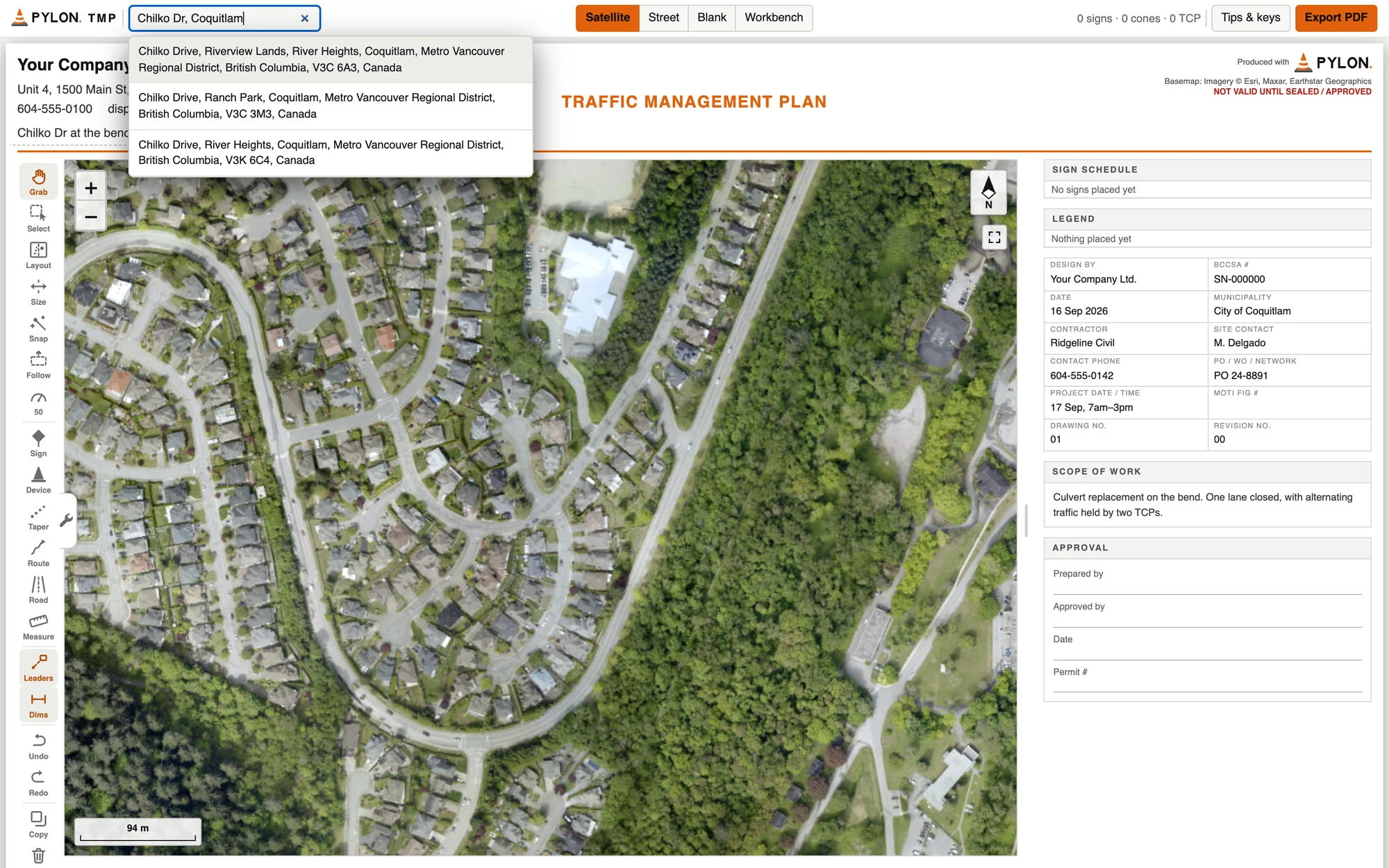
    Type the address and the map takes you there.

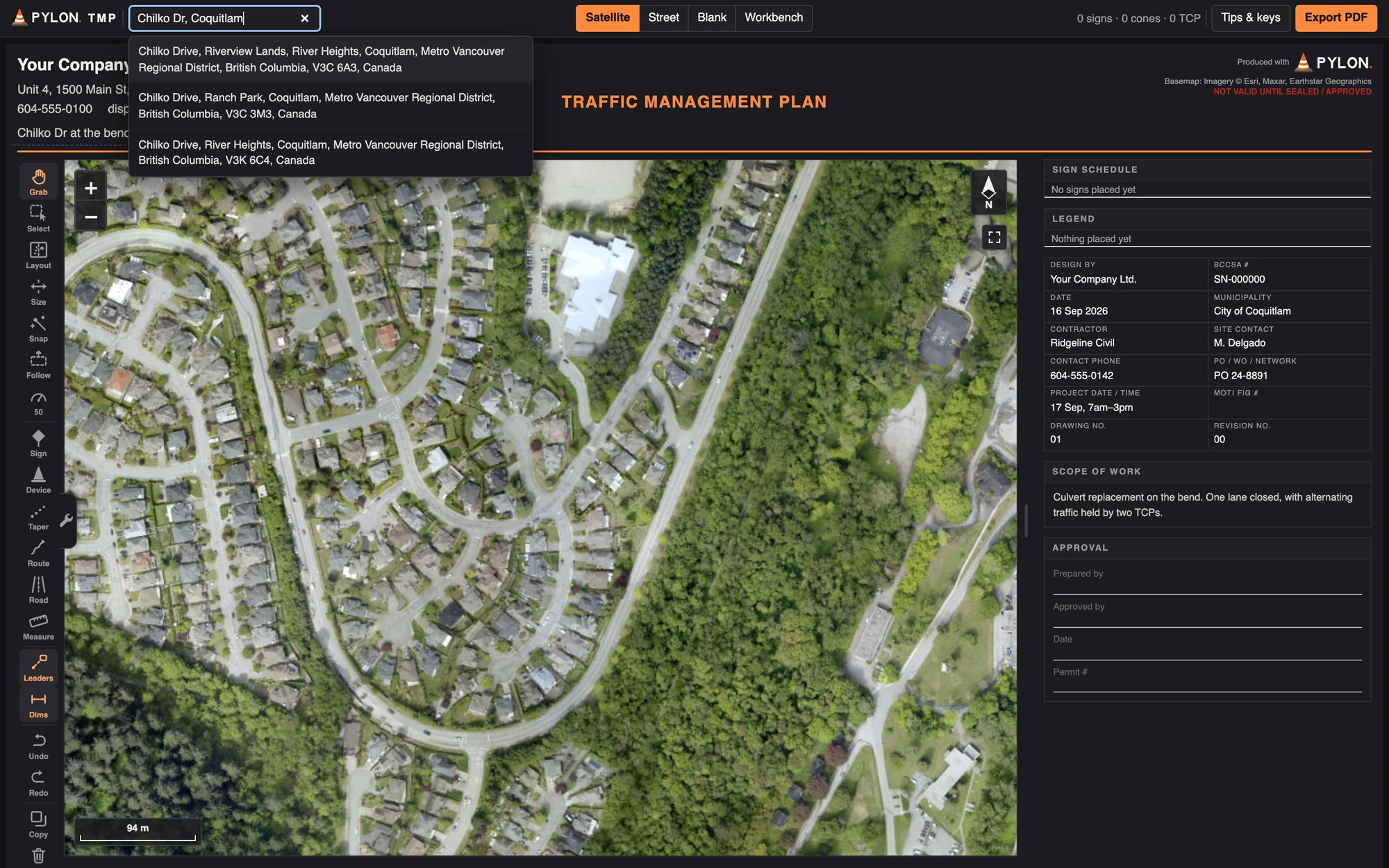
    The plan builder with 'Chilko Dr, Coquitlam' typed in the find-a-jobsite box, three matching addresses listed below it, and a satellite map of the bend on Chilko Drive. Sample data.
  3. 2 of 6

    Pick a standard layout.

    Pick one of the 112 standard layouts from the TMM, or one of your own saved presets.

    The layout list open on two-lane, two-way roads beside the map of Chilko Drive; then Figure 7.8, lane closure with TCPs, is picked and a preview of its signs and cones appears across the map. Sample data.
  4. 3 of 6

    Place it on the work area.

    Click where the work is, then which way traffic comes from. The layout drops in straight.

    Full-screen map with the Figure 7.8 layout dropped in a straight line along Chilko Drive, its south end running off the road past the bend, a message saying 40 devices were placed, and the Snap button lit up. Sample data.
  5. 4 of 6

    Snap it to the road.

    Press Snap and every sign and cone bends to follow the curve.

    The layout dropped in a straight line along Chilko Drive, and the same layout after Snap: the signs, cones and traffic control people follow the road around the bend. Sample data.
  6. 5 of 6

    Check it and fine-tune.

    Drag a sign to adjust it, and check the sign list before it goes out.

    A closer view of the bend with one Single Lane Traffic sign selected, its sign value and optional settings shown above the map, and the sign schedule listing every sign on the right. Sample data.
  7. 6 of 6

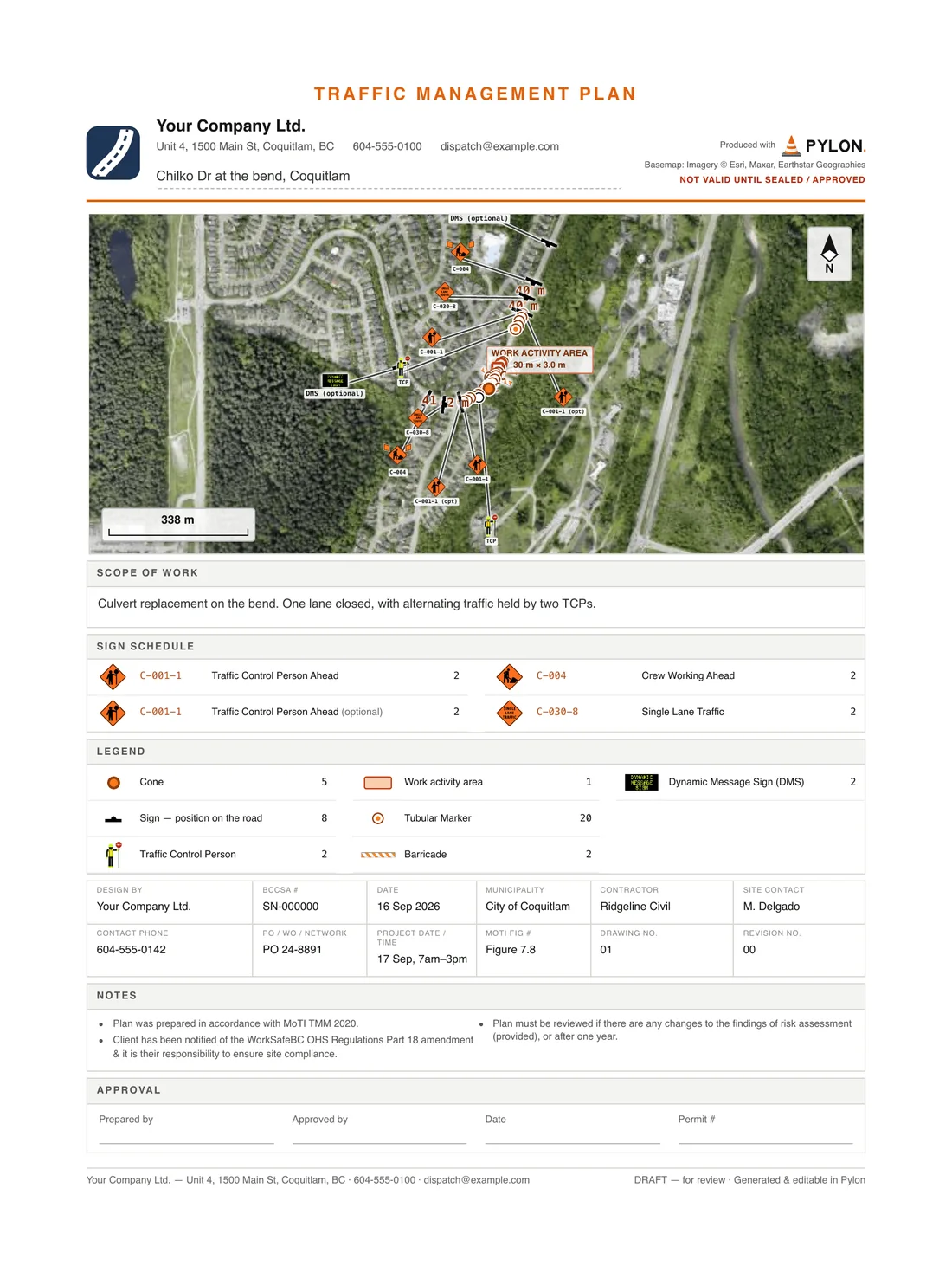
    Export a PDF that fits one page.

    Your company's details and the contractor's are already filled in. It's only waiting on the approval signature.

    • Your company name and logo
    • The plan, matching its figure in the TMM
    • Scope of work
    • Sign schedule
    • Legend
    • Owner and client details, added automatically
    • Notes
    • Ready for approval and signatures
    The finished plan on the sheet, snapped around the bend, with the company, job details, sign schedule and legend filled in and the Export PDF button at the top right. Sample data.
    The exported traffic plan on one page: map, scope of work, sign schedule, legend, a title block with the company and the contractor already filled in, and an empty approval box waiting for the signature. Sample data.

Step 3Safety & complianceOffice and crew

Only send people who are allowed to work.

Tickets, orientations and safety forms in one place, with a warning before anything runs out.

Replaces the ticket binder and paper hazard assessments.

  1. 1 of 5

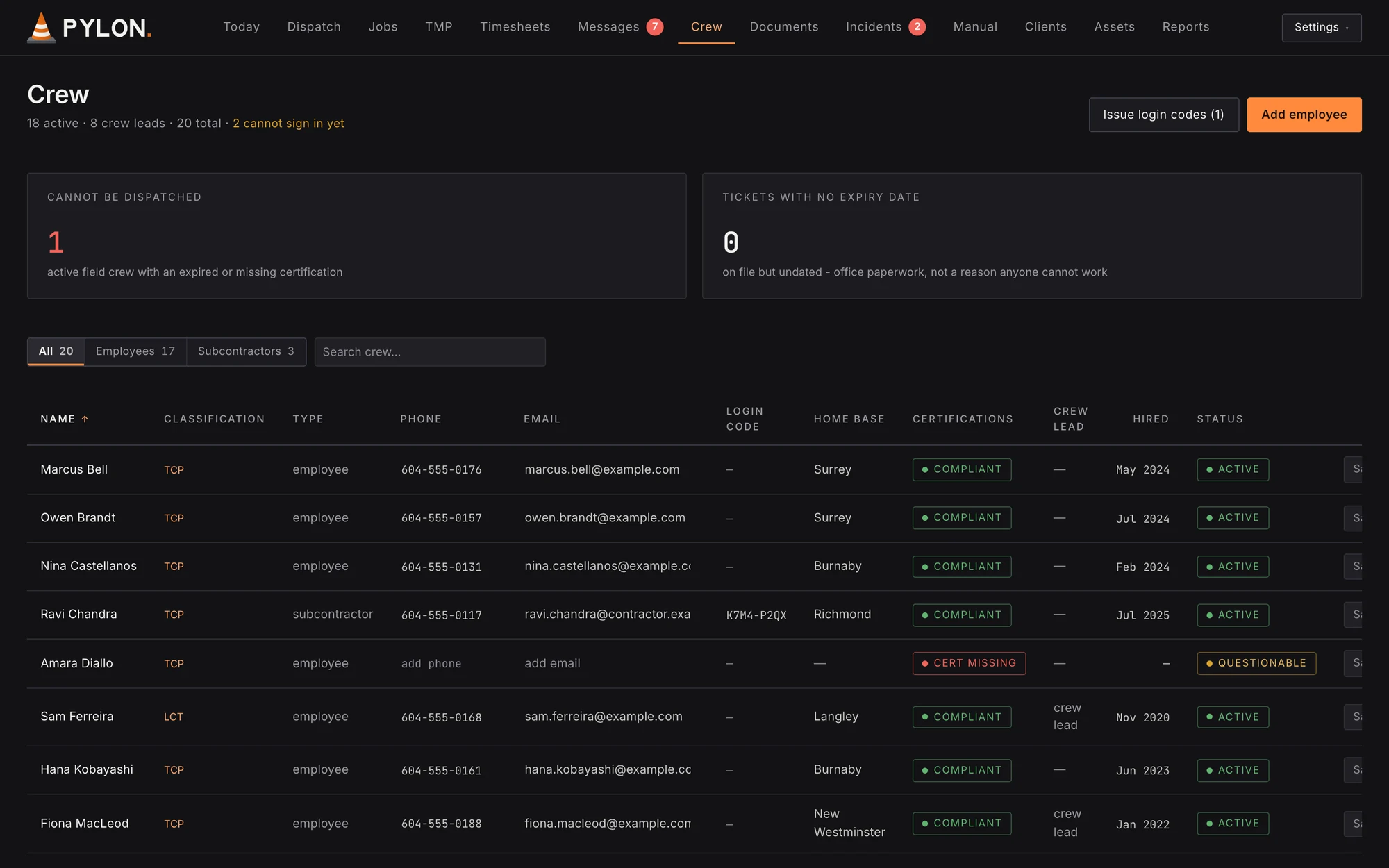
    See who can't be sent out.

    Anyone with an expired or missing ticket is flagged before they're booked.

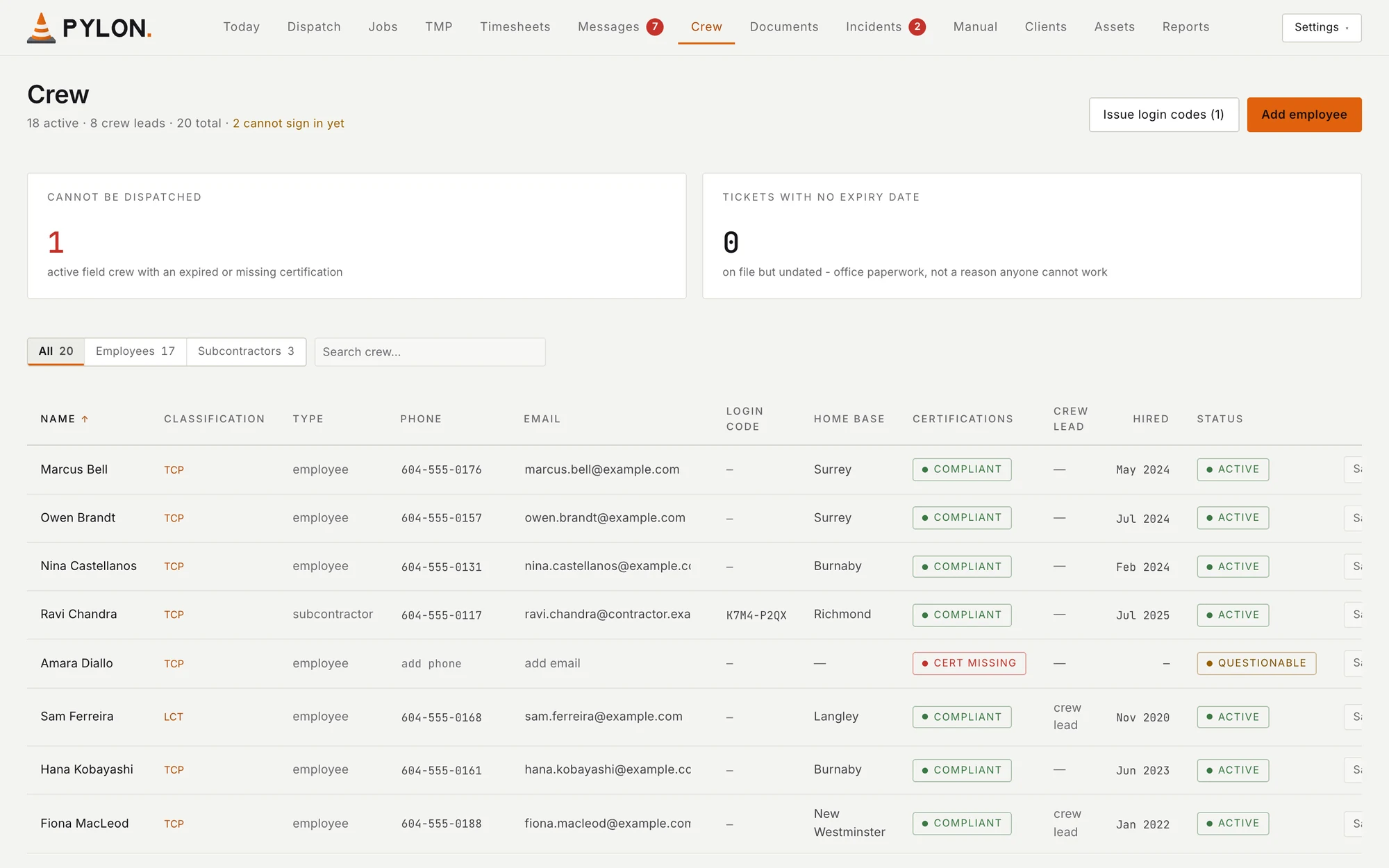
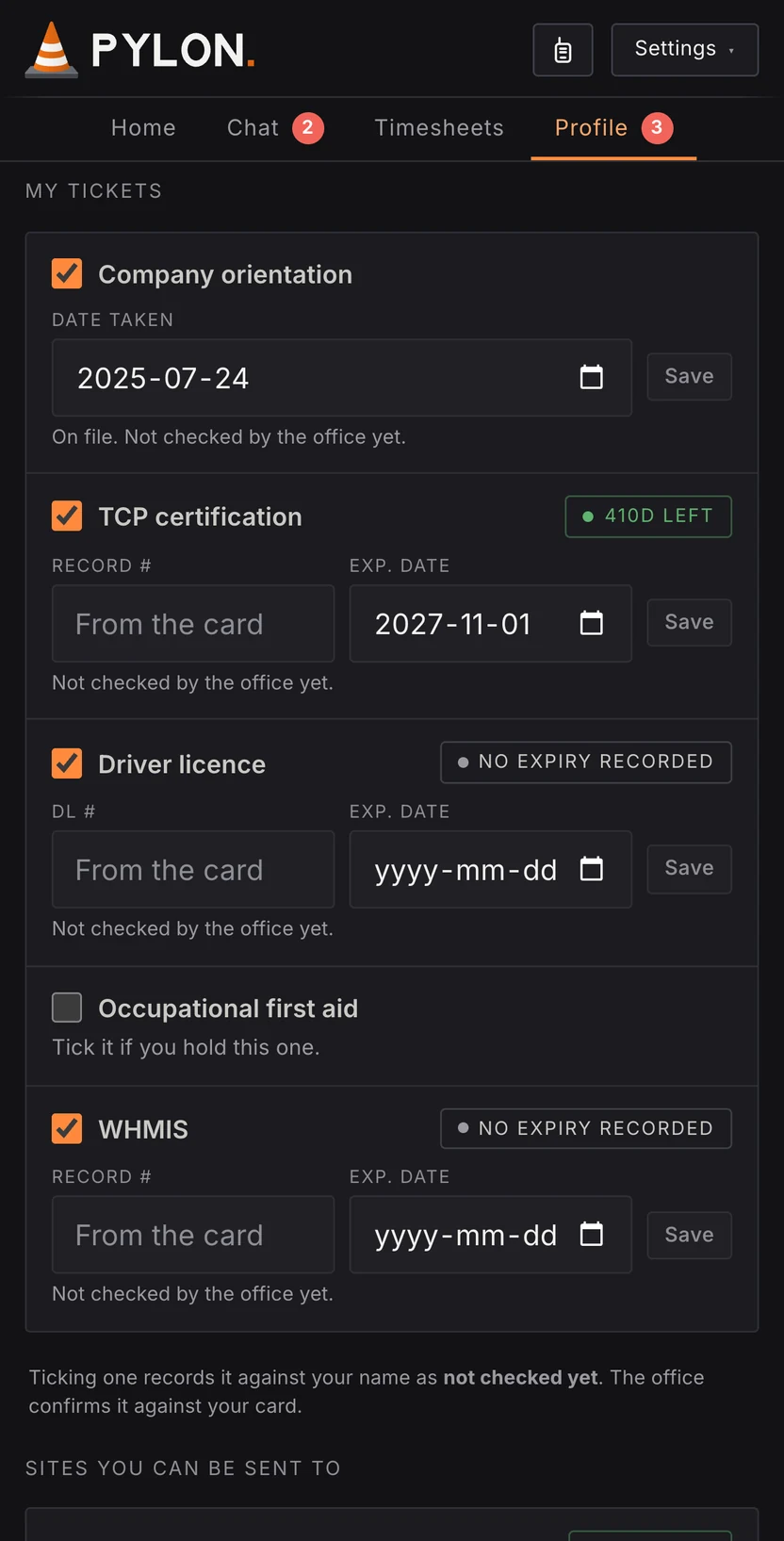
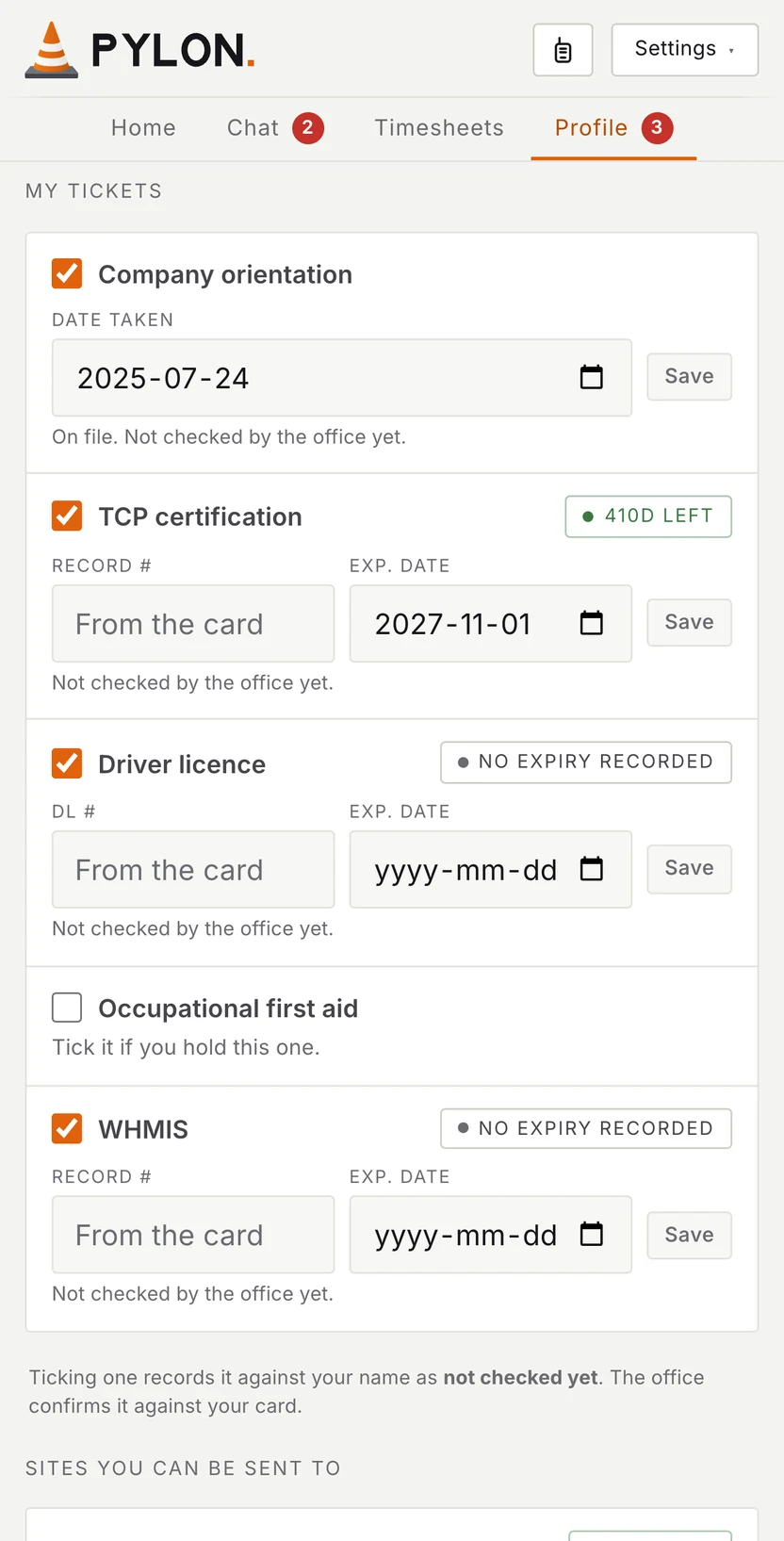
    Pylon Crew screen on a laptop: a "Cannot be dispatched" count of crew with an expired or missing ticket, above the crew list with each person's ticket status. Sample data. Pylon crew app on a phone, My tickets: a company orientation date on file and a TCP certification showing 410 days left before it expires. Sample data.
  2. 2 of 5

    Site orientations, checked.

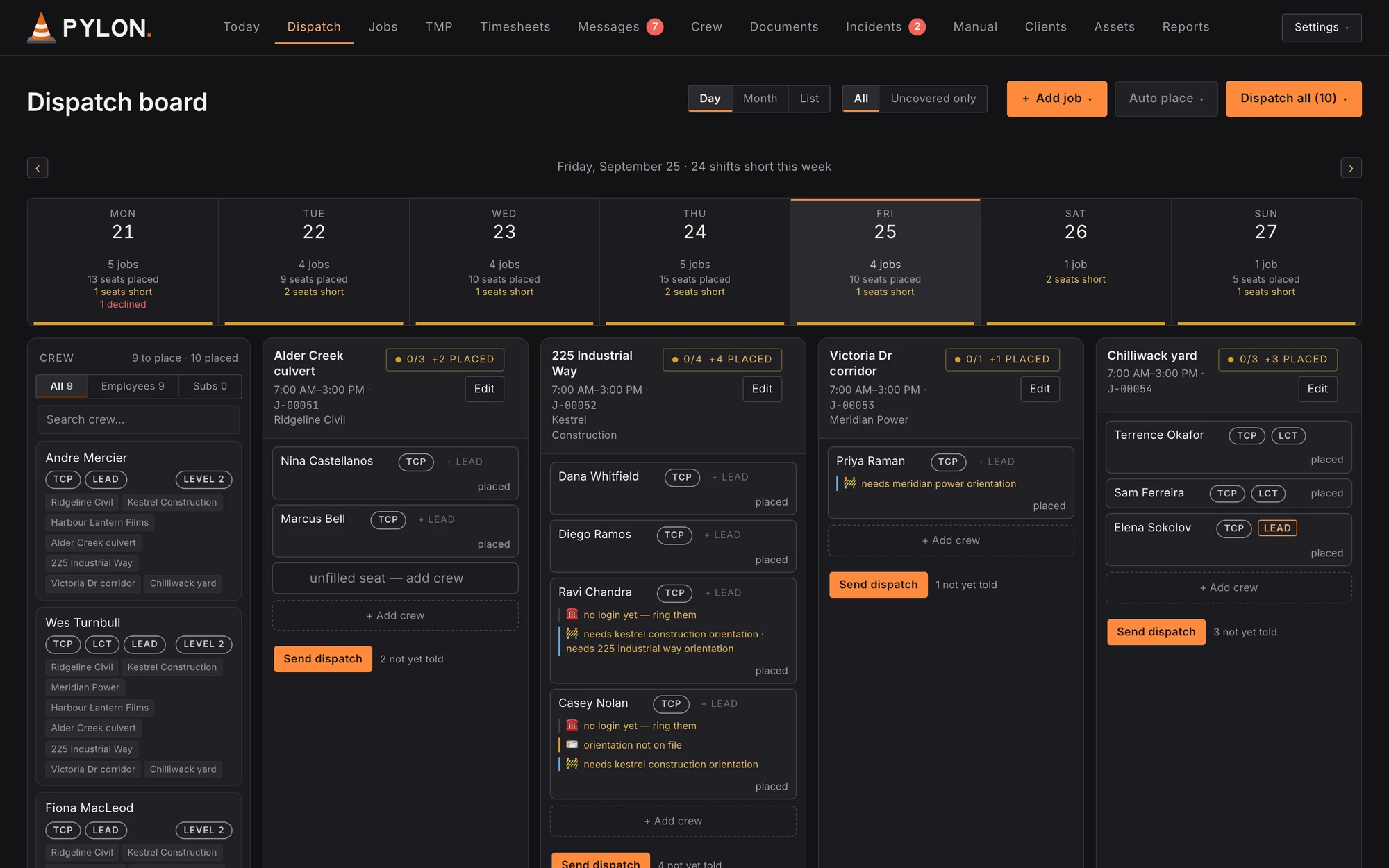
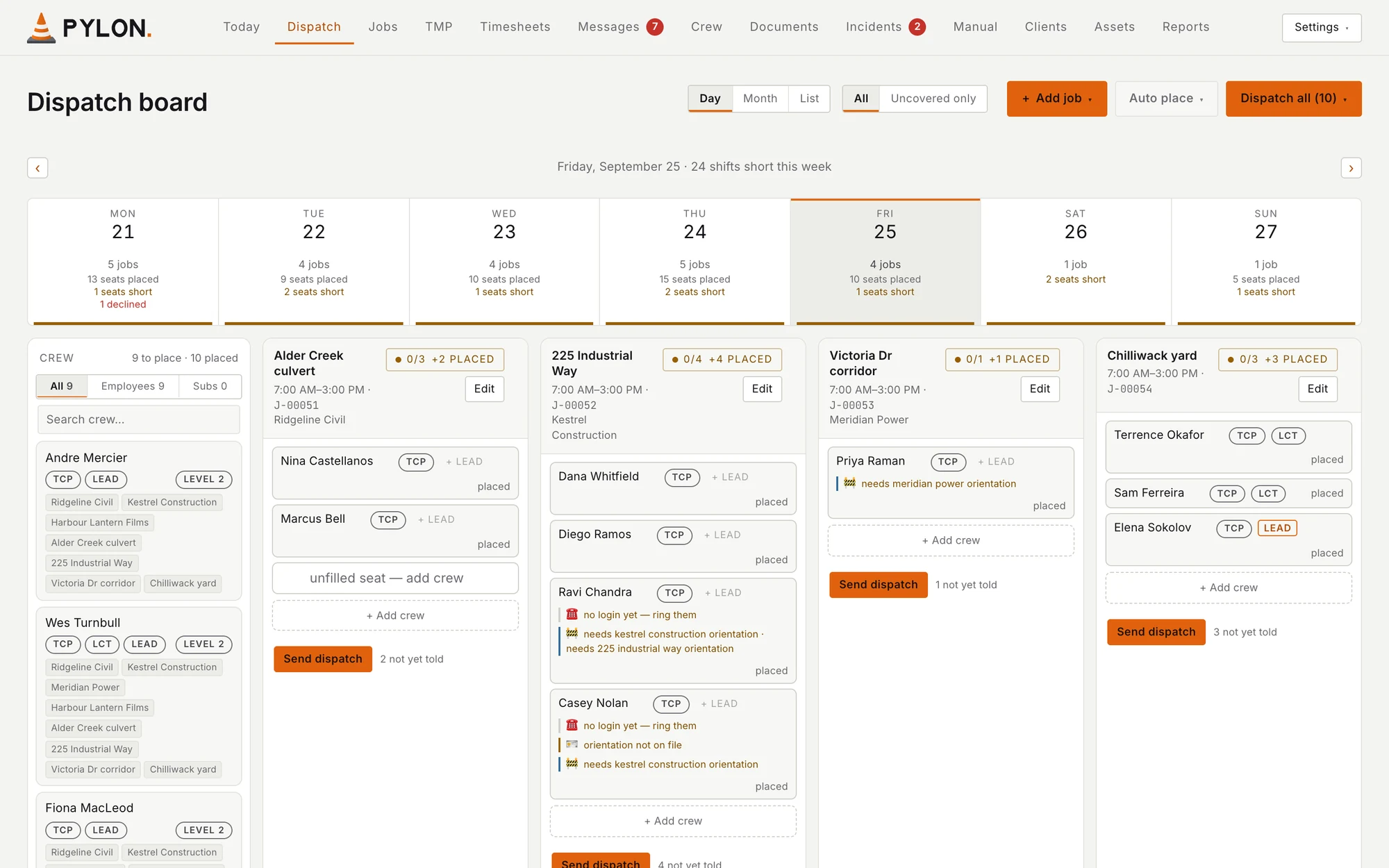
    The board shows who still needs a site orientation before you send them.

    Pylon dispatch board for Friday, September 25 on a laptop: a crew member placed on the Victoria Dr corridor job is flagged as needing a Meridian Power site orientation, that job's dispatch has not been sent yet, and the crew list on the left shows the site orientations each person already has, Andre Mercier's among them. Sample data. Pylon crew app on a phone, My tickets: a company orientation date on file and a TCP certification showing 410 days left before it expires. Sample data.
  3. 3 of 5

    Short rest is flagged before anyone is sent.

    Anyone who'd get less than 8 hours' rest between shifts gets a warning on the board, so you can change the crew before the day is sent.

    The dispatch board for Thursday, September 17: Terrence Okafor, placed on the 64 Ave water main job at 5:00 PM, is flagged for less than 8 hours' rest because his day on 225 Industrial Way ended at 3:00 PM. Sample data. Pylon crew app on a phone, My tickets: a company orientation date on file and a TCP certification showing 410 days left before it expires. Sample data.
  4. 4 of 5

    Tickets on the crew's phone.

    Crew keep their own tickets up to date, and see how long each one has left.

    Pylon Crew screen on a laptop: a "Cannot be dispatched" count of crew with an expired or missing ticket, above the crew list with each person's ticket status. Sample data. Pylon crew app on a phone, My tickets: a company orientation date on file and a TCP certification showing 410 days left before it expires. Sample data.
  5. 5 of 5

    Report an incident from the shift.

    Crew pick what happened, from a near miss to someone hurt, and send it to the office. Photos can be added, with their location removed on the phone.

    Pylon Crew screen on a laptop: a "Cannot be dispatched" count of crew with an expired or missing ticket, above the crew list with each person's ticket status. Sample data. Pylon crew app on a phone, an incident report on a shift: Near miss picked from six kinds (near miss, someone hurt, damage, vehicle, public complaint, something else), then when and where it happened, what happened in their own words what they did about it, and the Send to the office button. Sample data.

Step 4DispatchOffice and crew

Send the day. See who said yes.

One button tells everyone you've placed. Each person answers on their phone.

Replaces the 5 a.m. phone calls and the group texts.

  1. 1 of 4

    Send the day.

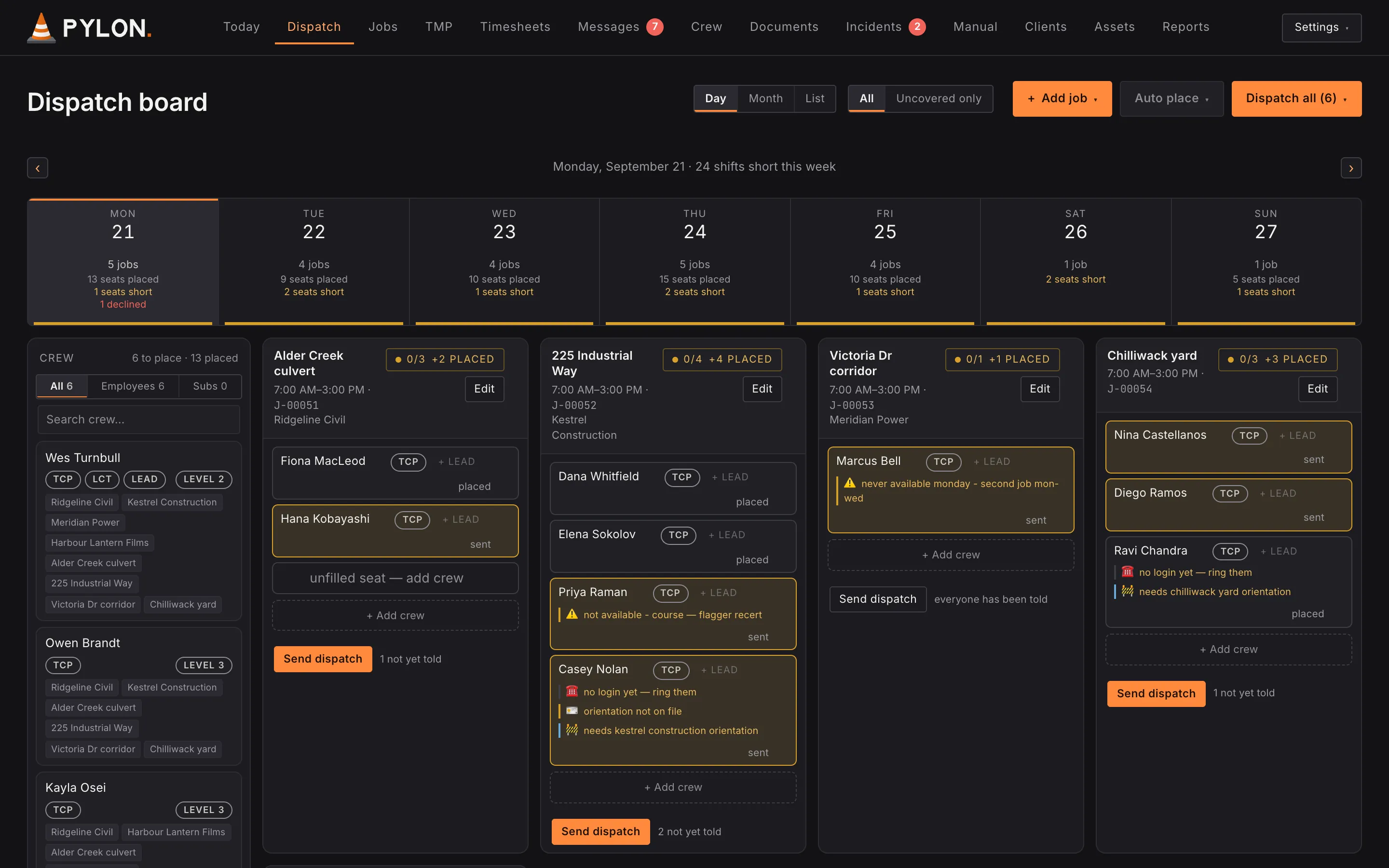
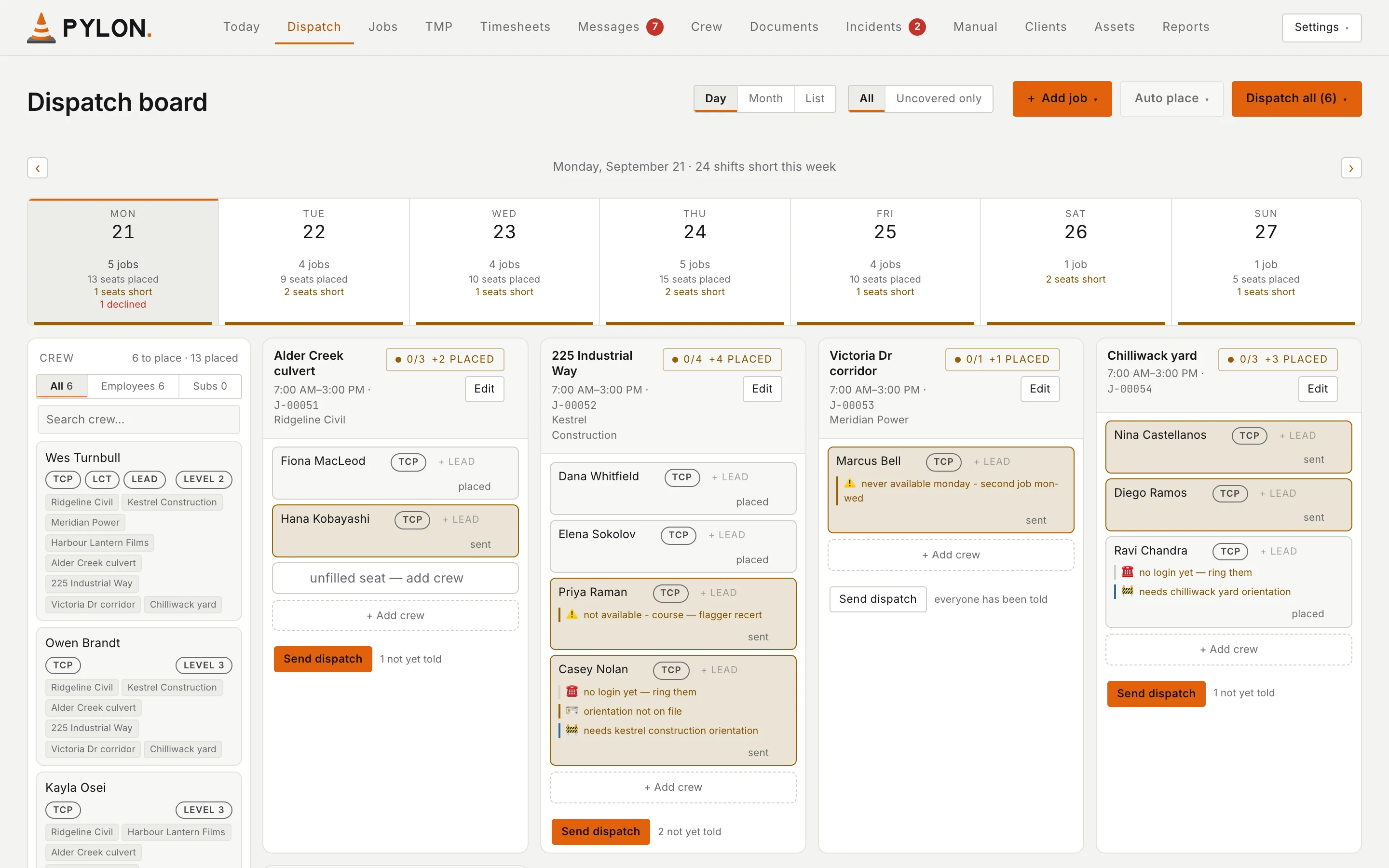
    Dispatch all tells everyone you've placed who hasn't been told yet. Anyone not on the app yet is flagged so you can call them.

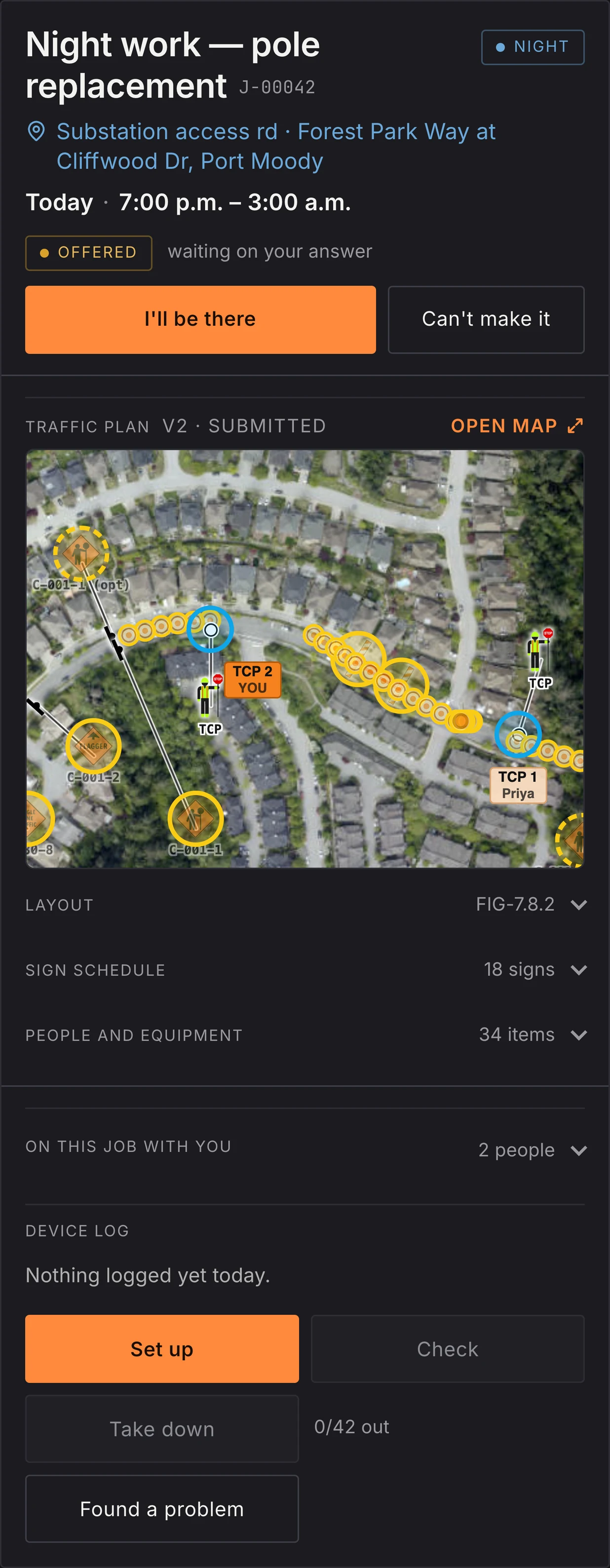
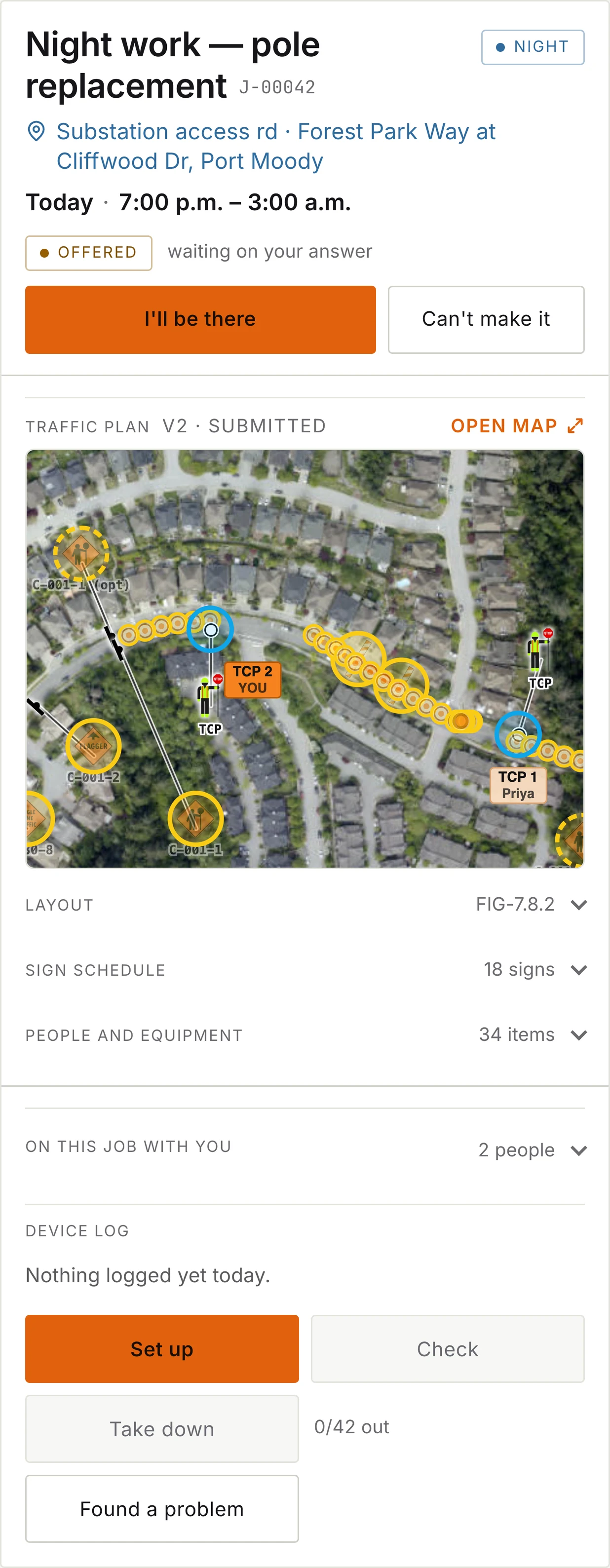
    Dispatch board for Monday, September 21 with the Dispatch all (6) button at the top right and Send dispatch buttons on jobs with people not told yet. Sample data. Crew phone app showing an offered night shift, Night work — pole replacement (J-00042) at Substation access rd, Forest Park Way at Cliffwood Dr, Port Moody, today 7:00 p.m. to 3:00 a.m., with I'll be there and Can't make it buttons and a map of the traffic plan marking the TCP posts. Sample data.
  2. 2 of 4

    They answer on their phone.

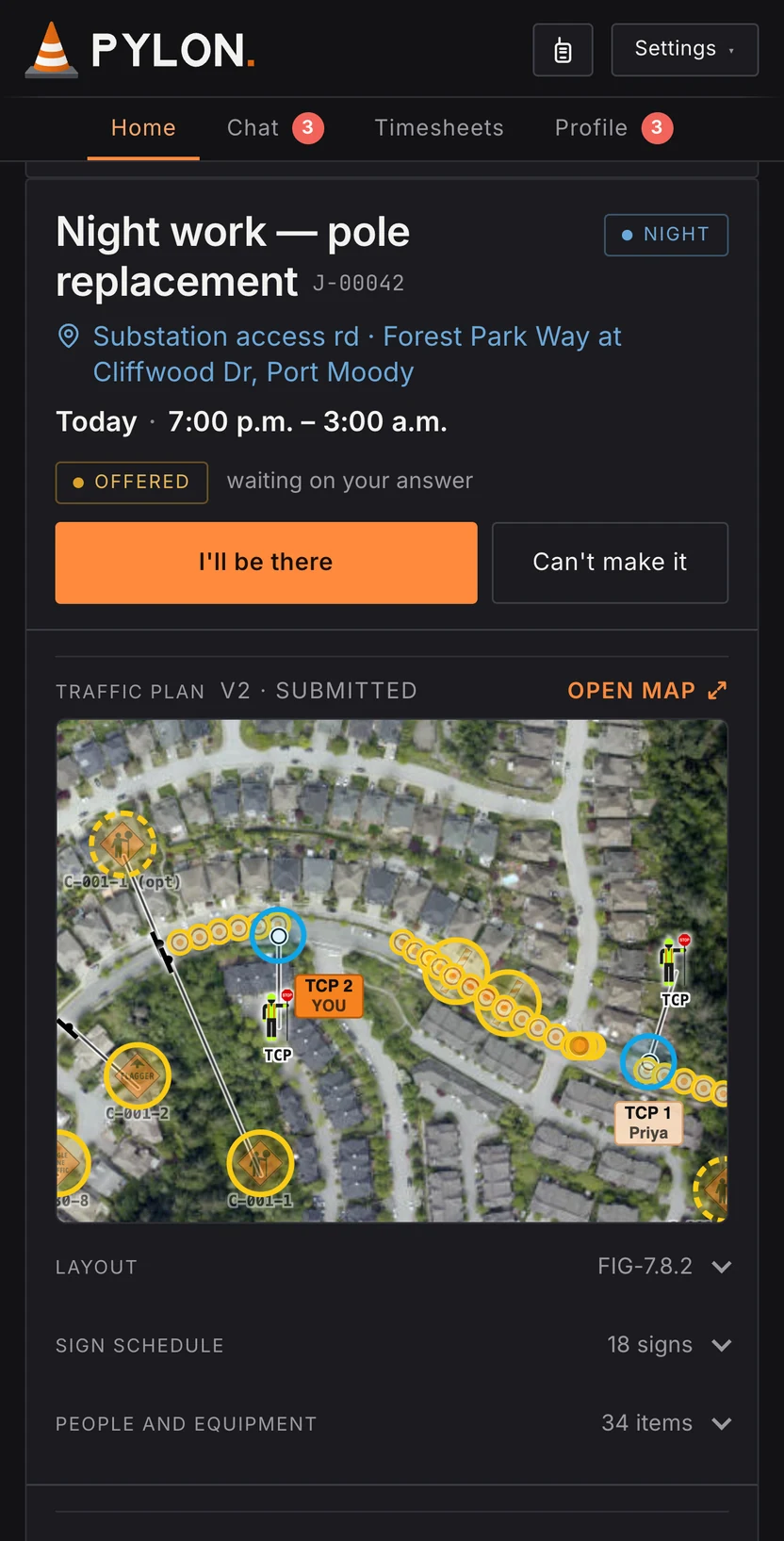
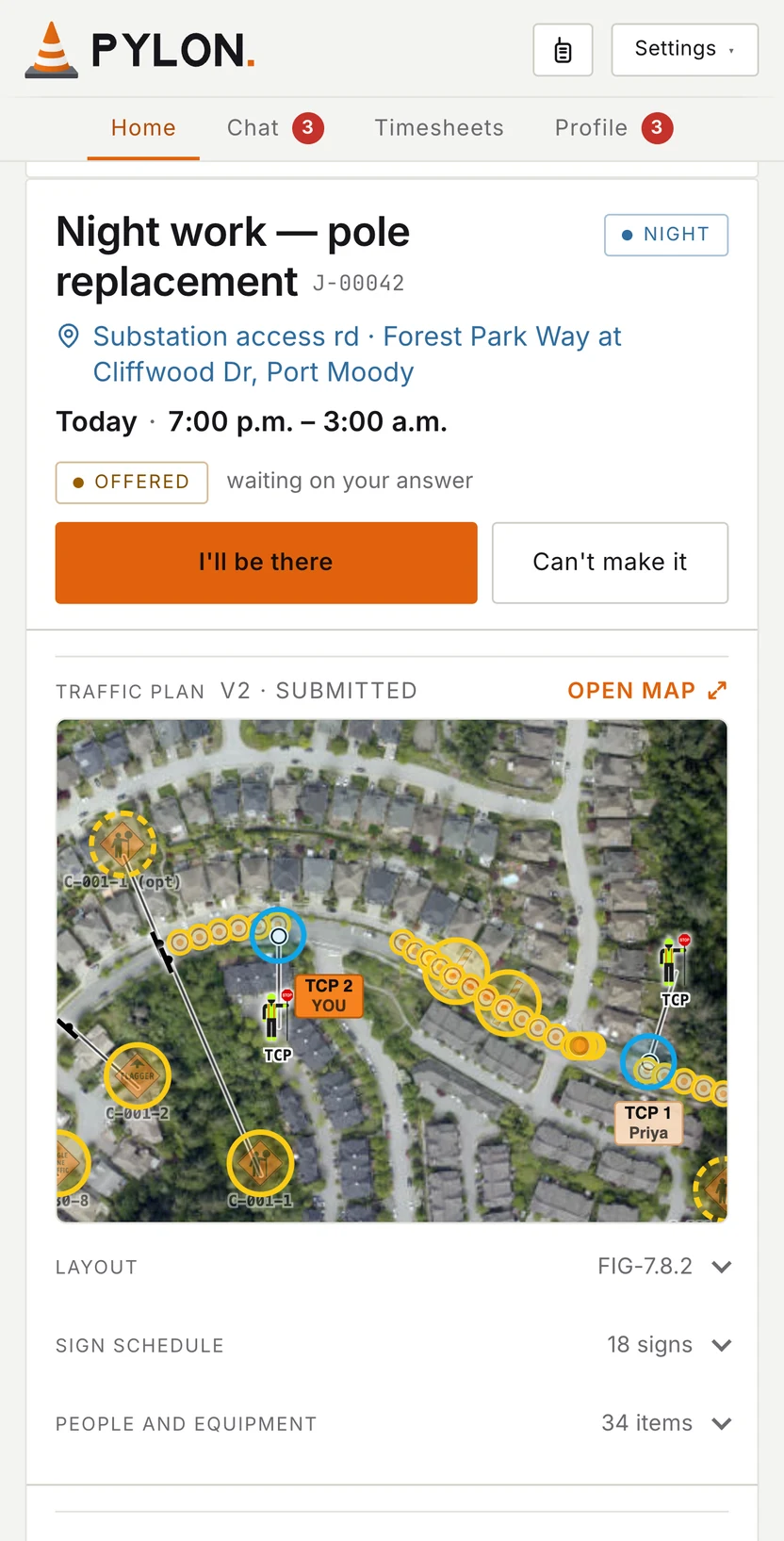
    Tap I'll be there, or tap Can't make it and tell the office why.

    • The job, its number, day or night
    • Where it is, a tap from the map
    • The day and the hours
    • Whether they've answered yet
    • I'll be there, or Can't make it
    • The traffic plan, with their post marked
    • The layout from the TMM
    • Every sign on the plan
    • The people and equipment
    • Who else is on the job
    • A log of the setup, check and take down
    Dispatch board for Monday, September 21 with the Dispatch all (6) button at the top right and Send dispatch buttons on jobs with people not told yet. Sample data. Crew phone app showing an offered night shift, Night work — pole replacement (J-00042) at Substation access rd, Forest Park Way at Cliffwood Dr, Port Moody, today 7:00 p.m. to 3:00 a.m., with I'll be there and Can't make it buttons and the traffic plan's map framed on the work area, marking TCP 2 (you) and TCP 1 (Priya). Sample data.
  3. 3 of 4

    See who accepted, and who declined, and why. Ahead of time.

    Anyone who can't make it stays on the job, with a button to find someone else.

    Dispatch board for Monday, September 21, scrolled to a barrier install job. Three seats in one column: Hana Kobayashi's reads sent, still waiting on an answer; Terrence Okafor's, on the barrier install, reads accepted; and Kayla Osei's shows declined — Away — family, with a Find someone else button. Sample data. Crew phone app showing an offered night shift, Night work — pole replacement (J-00042) at Substation access rd, Forest Park Way at Cliffwood Dr, Port Moody, today 7:00 p.m. to 3:00 a.m., with I'll be there and Can't make it buttons and a map of the traffic plan marking the TCP posts. Sample data.
  4. 4 of 4

    The morning list.

    Pylon opens on the shifts that still need an answer or haven't been told.

    Today page listing Shifts that need a decision in the next 18 hours, each with badges such as 1 nobody asked, PO missing, no crew lead and 2 no answer. Sample data. Crew phone app showing an offered night shift, Night work — pole replacement (J-00042) at Substation access rd, Forest Park Way at Cliffwood Dr, Port Moody, today 7:00 p.m. to 3:00 a.m., with I'll be there and Can't make it buttons and a map of the traffic plan marking the TCP posts. Sample data.

Step 5Message your crewOffice and crew

Talk to your crew in one place.

Message the whole company, everyone on one job, or one person.

Replaces group texts and chasing people one by one.

  1. 1 of 4

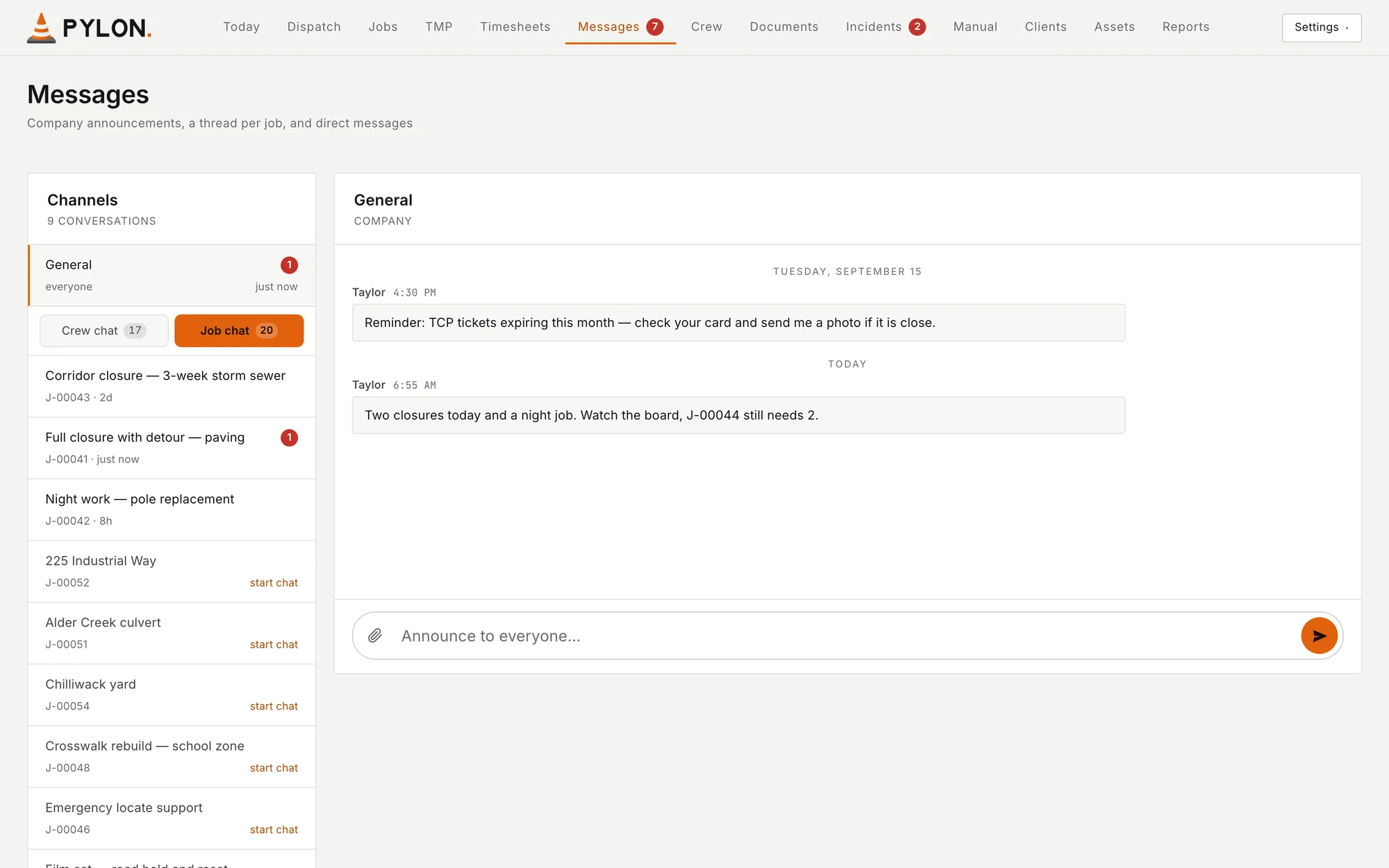
    Message everyone at once.

    Announcements go to the whole company, right from the office.

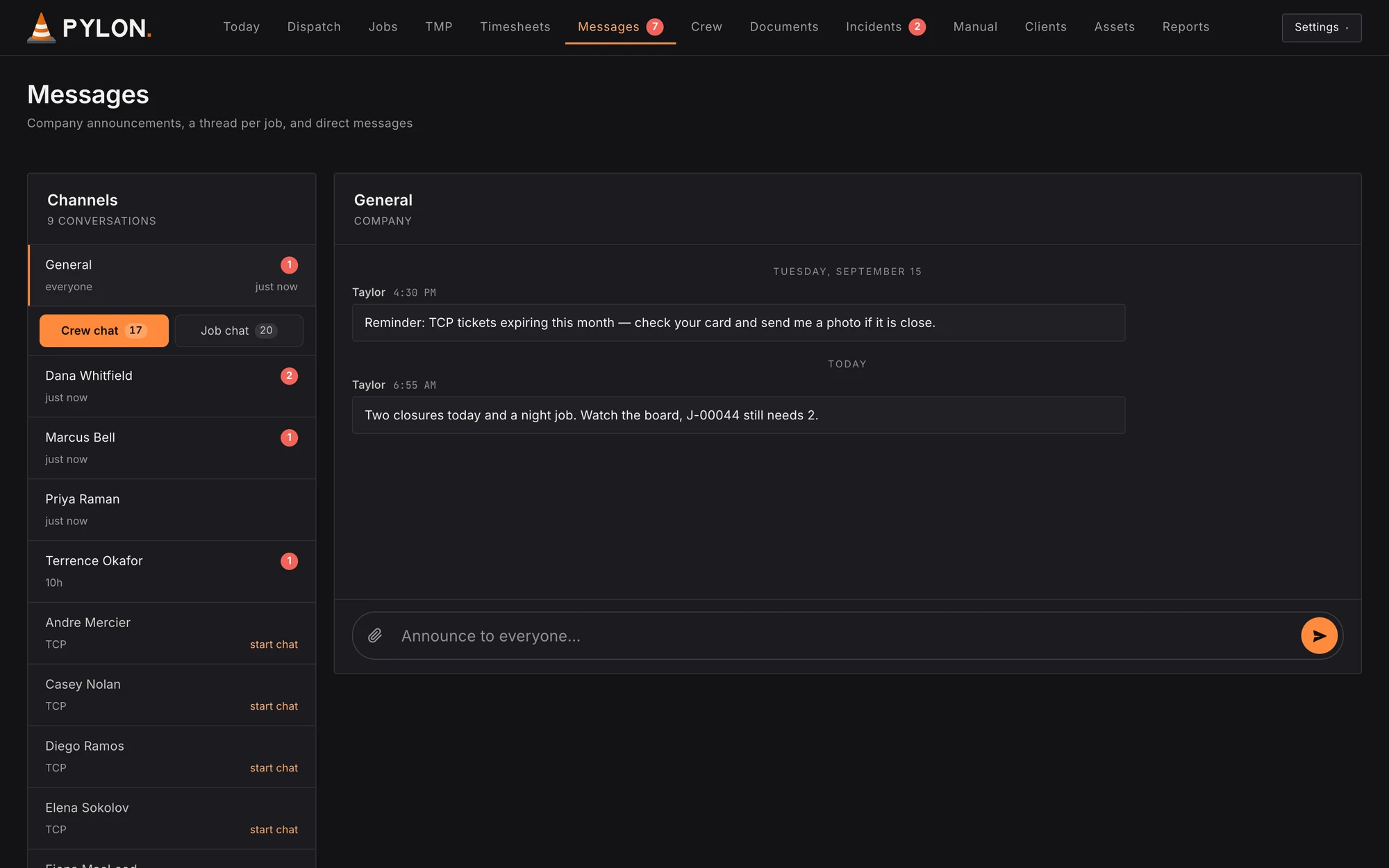
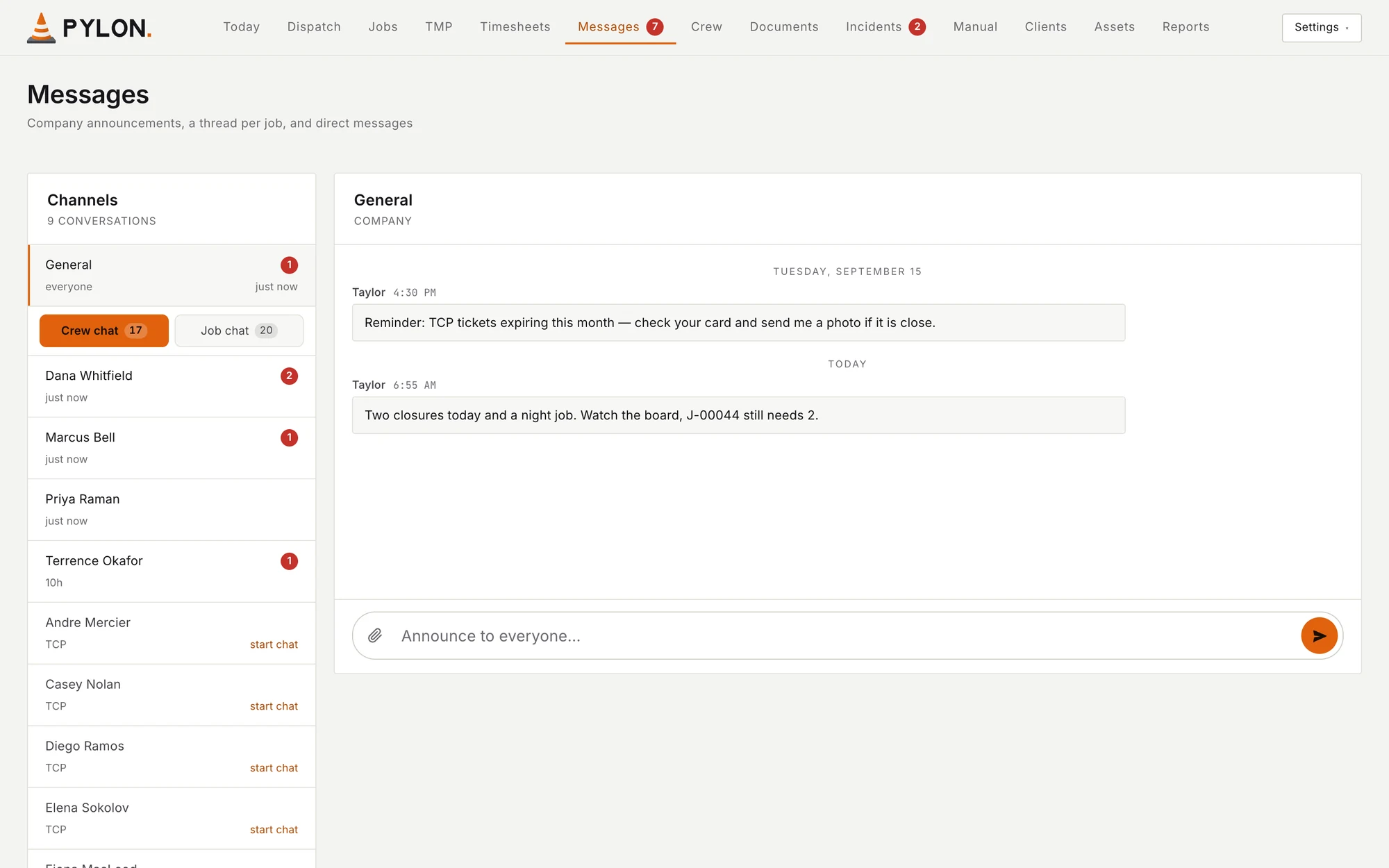
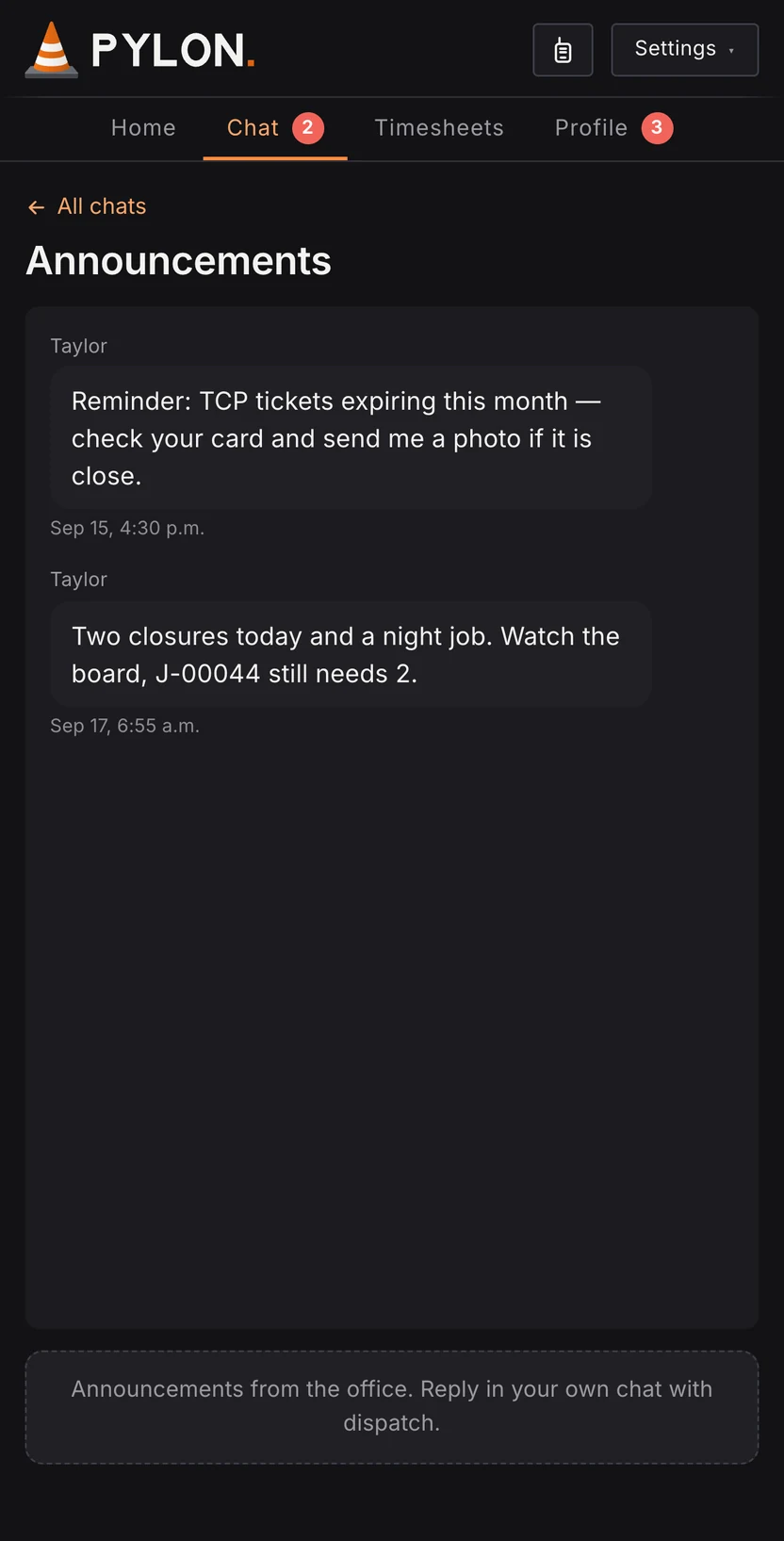
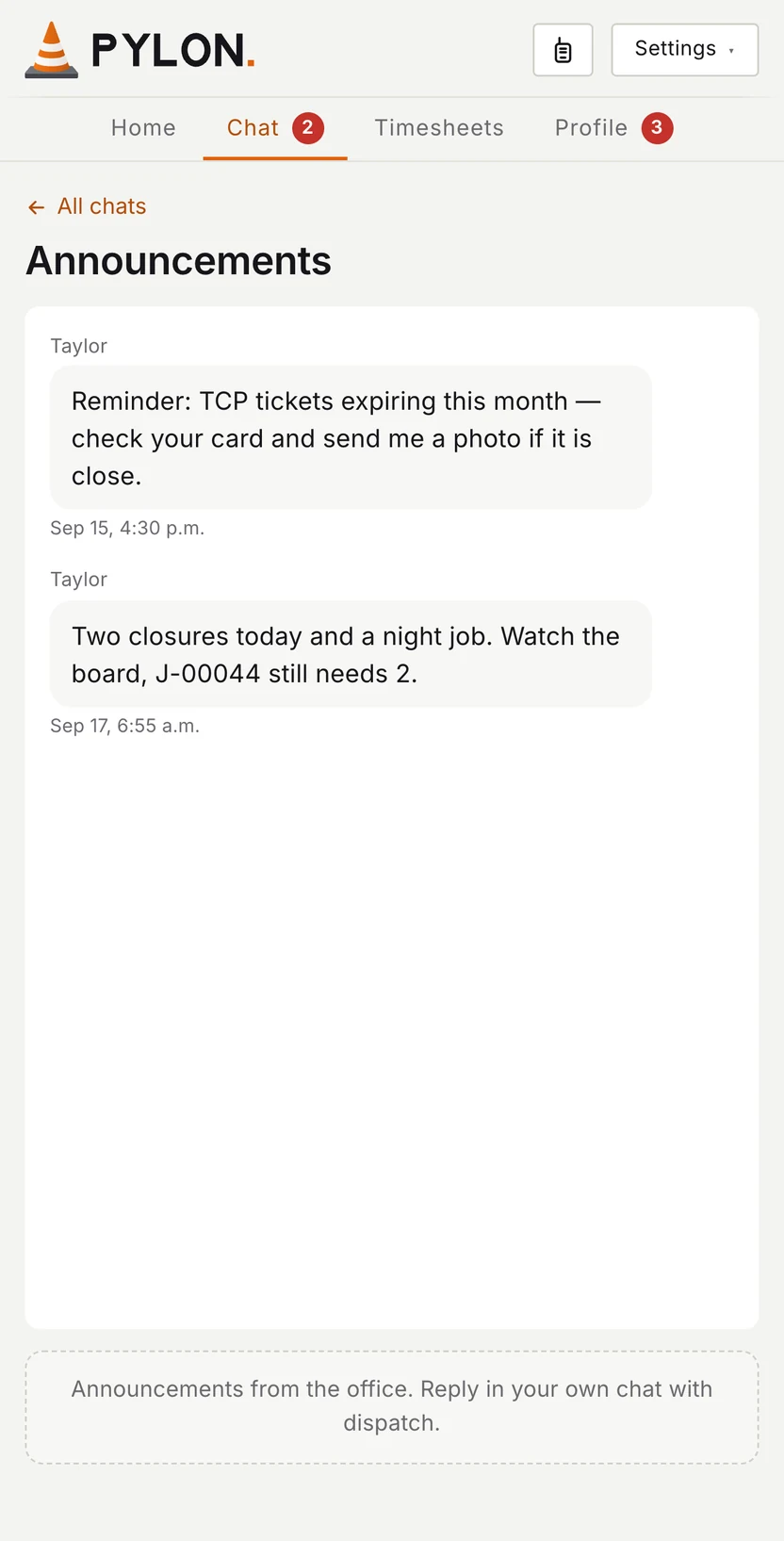
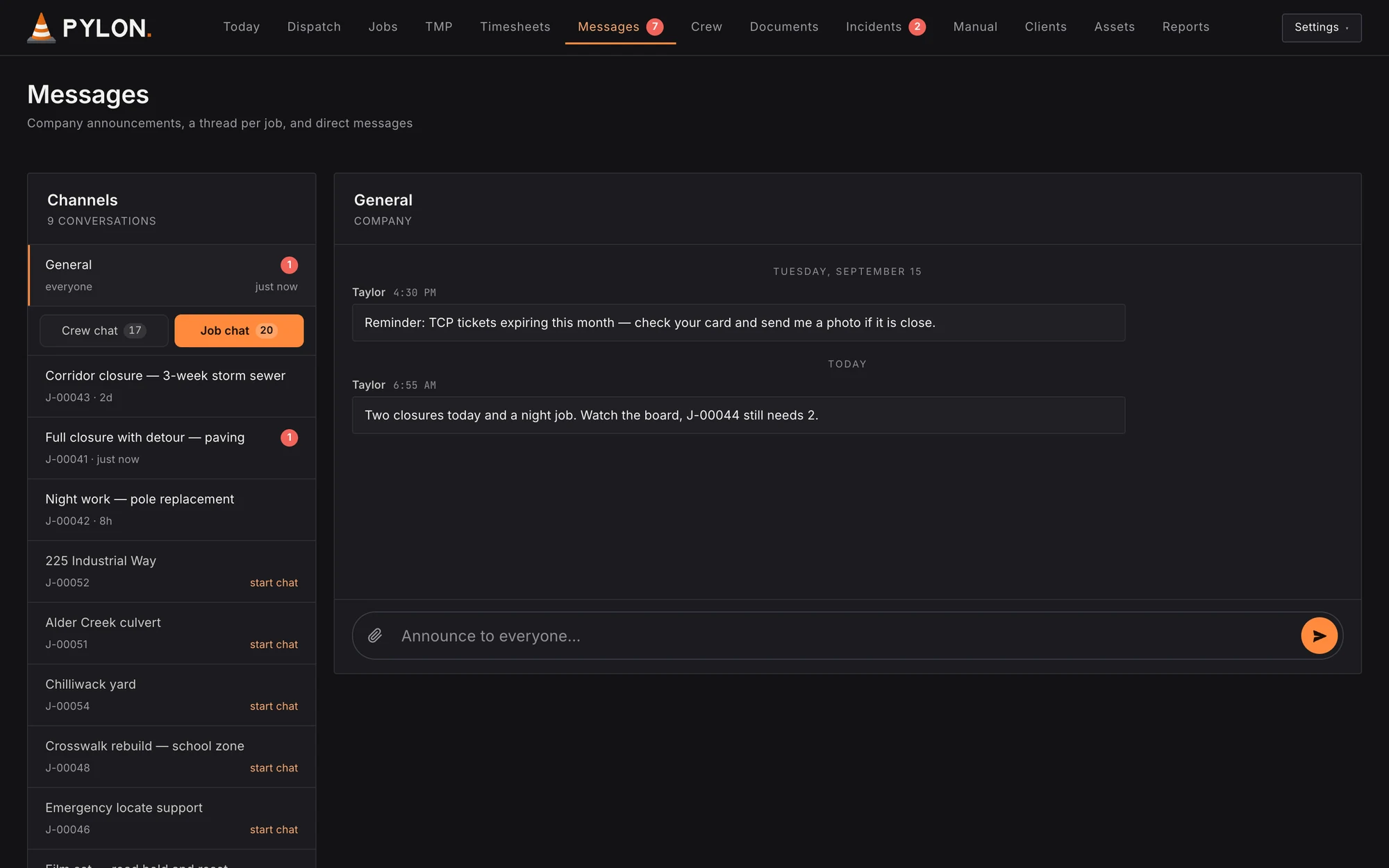
    The office Messages screen with the General channel open: two announcements to the whole company and a message box that says Announce to everyone. Sample data. The crew app on a phone showing the Announcements chat with two messages from the office. Sample data.
  2. 2 of 4

    A chat for every job.

    Everyone on a job sees the same messages, photos and PDFs.

    The office Messages screen with the Job chat tab open, listing one chat for each job by name and job number. Sample data. The crew app on a phone showing the Announcements chat with two messages from the office. Sample data.
  3. 3 of 4

    Right on the crew's phone.

    Crew read announcements in the app. No group texts.

    The office Messages screen with the General channel open: two announcements to the whole company and a message box that says Announce to everyone. Sample data. The crew app on a phone showing the Announcements chat with two messages from the office. Sample data.
  4. 4 of 4

    A walkie for every job.

    Hold the button and everyone on today's crew hears you. It works while Pylon is open, so use it alongside your radios.

    The office Messages screen with the General channel open: two announcements to the whole company and a message box that says Announce to everyone. Sample data. Pylon crew app on a phone, Walkie: talk to the crew on today's job, Willow Creek corridor for Kestrel Construction, with a big Hold to talk button, a choice of Hold or Tap, and Turn off walkie. Sample data.

Step 6Equipment trackingOffice and crew

Know what's due, and what's set up.

The office keeps every truck's paperwork on time. Crew log the setup on site.

Replaces the truck paperwork binder and paper setup logs.

  1. 1 of 3

    Truck paperwork on time.

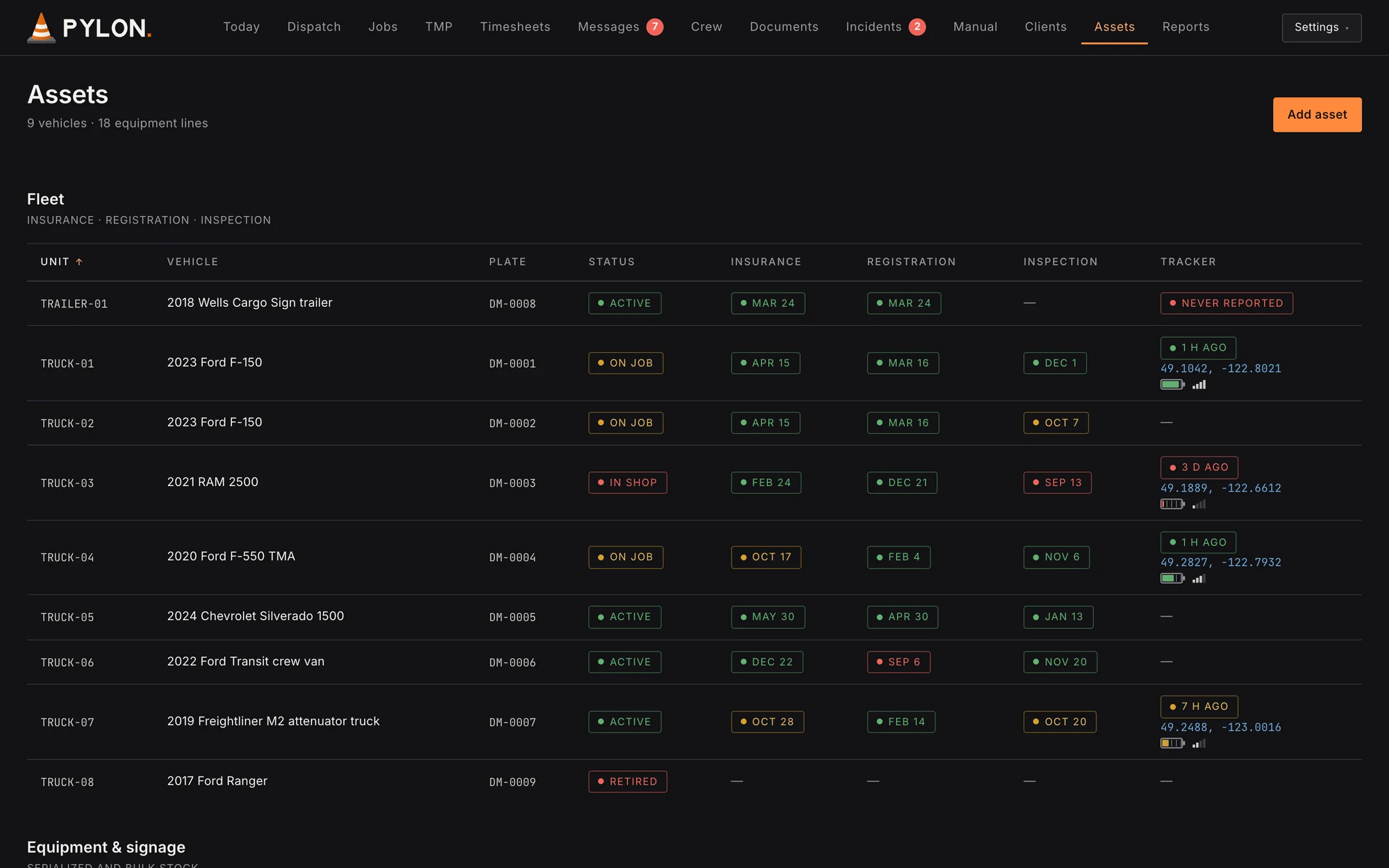
    Insurance, registration and inspection dates for every truck, with a warning before they run out.

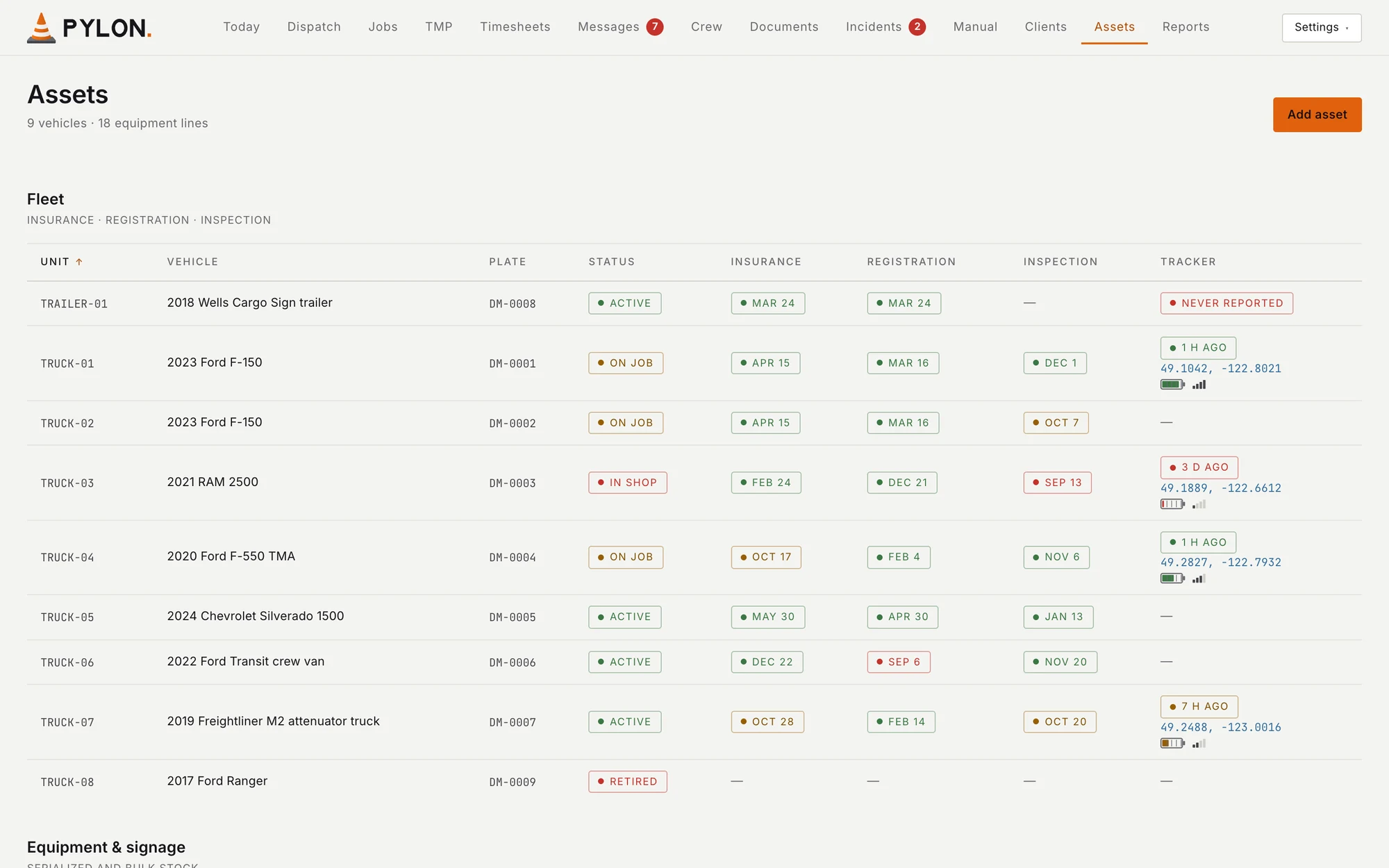
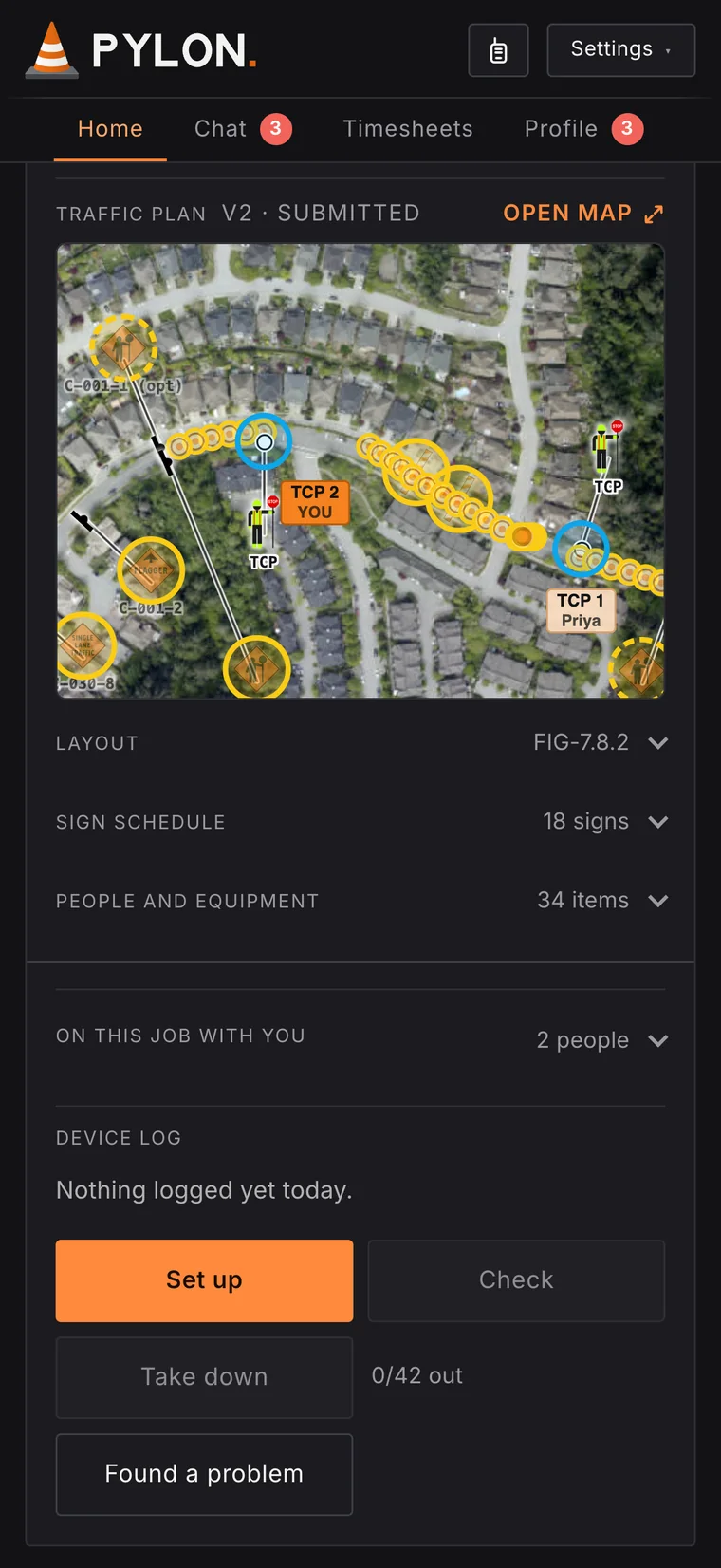
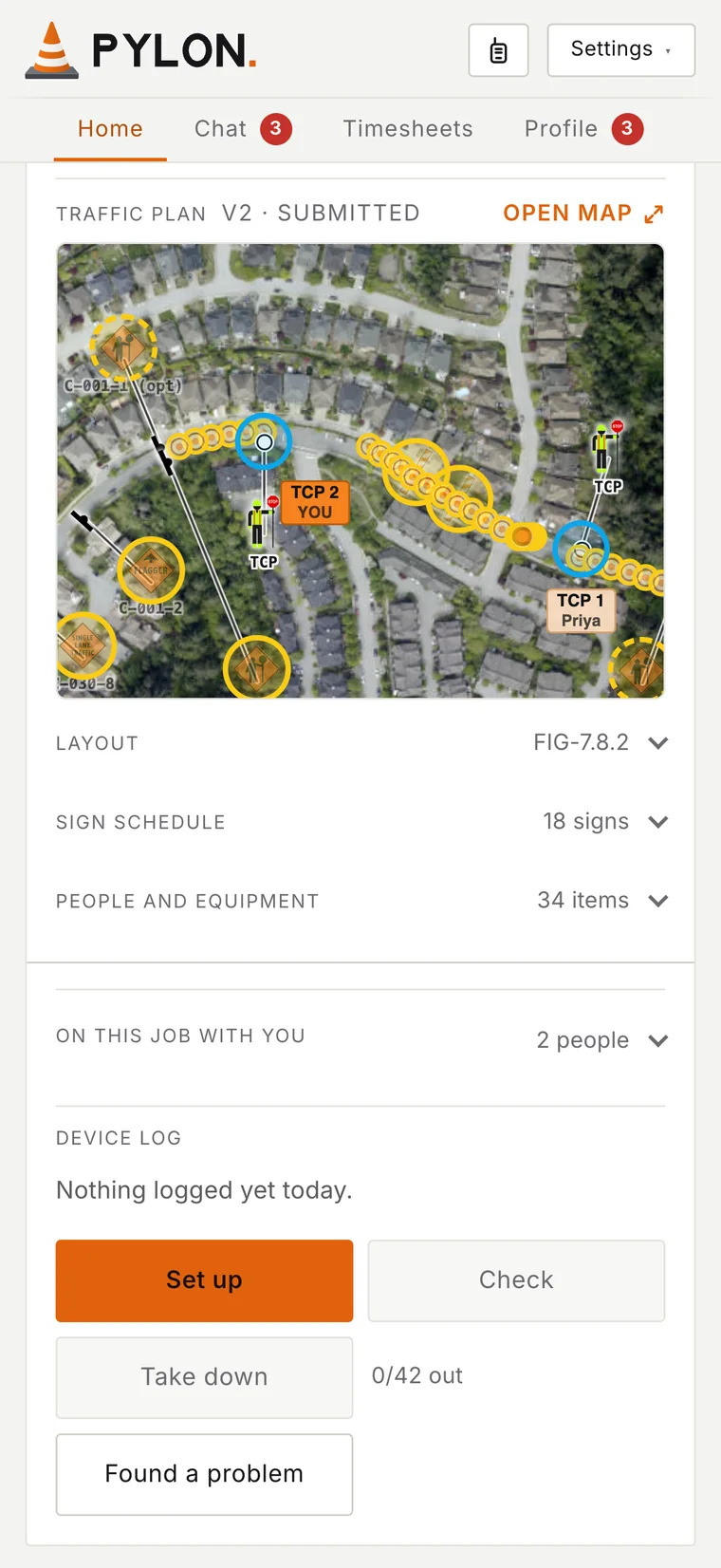
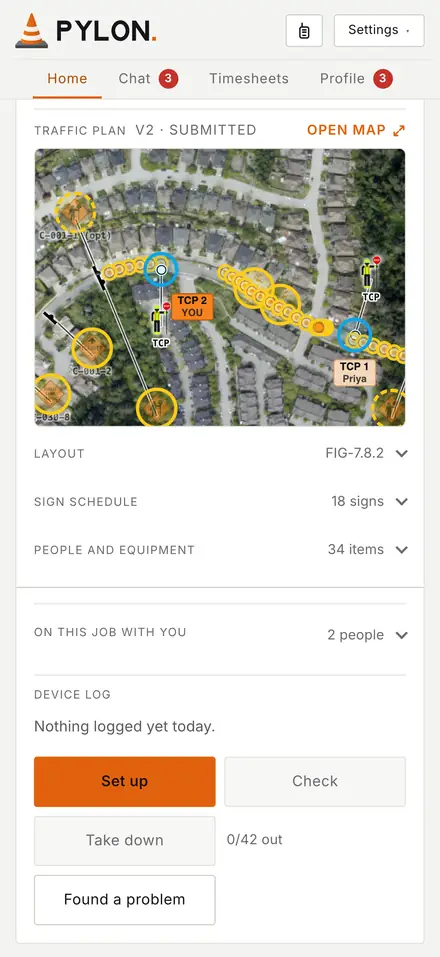
    The Assets screen's fleet table with insurance, registration and inspection due dates for every truck, coloured green, amber or red by how soon they run out. Sample data. Crew phone app on the Night work shift, scrolled to its traffic plan and device log: the map with every sign and cone on a yellow ring, not set up yet, and Set up, Check, Take down and Found a problem, 0/42 out. Sample data.
  2. 2 of 3

    Log the setup with a tap.

    Crew tap when the signs and cones go up, get checked and come down.

    The crew is walked through every sign and cone in the manual's order, up and down.

    Crew phone app on the Night work shift, scrolled to its traffic plan and device log: the map with every sign and cone on a yellow ring, not set up yet, and Set up, Check, Take down and Found a problem, 0/42 out. Sample data.
  3. 3 of 3

    Flag a problem on site.

    Found a problem asks what was wrong and where, and adds it to the device log.

    The Assets screen listing the company's trucks and trailer with their status and insurance, registration and inspection dates. Sample data. Crew phone app on the Night work shift, scrolled to its traffic plan and device log: the map with every sign and cone on a yellow ring, not set up yet, and Set up, Check, Take down and Found a problem, 0/42 out. Sample data.

Step 7Incident reportsIn the office

When something happens, it's filed in Pylon.

Incident reports are kept with the job, so they're there the moment someone asks.

Replaces paper reports in a filing cabinet.

  1. 1 of 2

    Kept with the job.

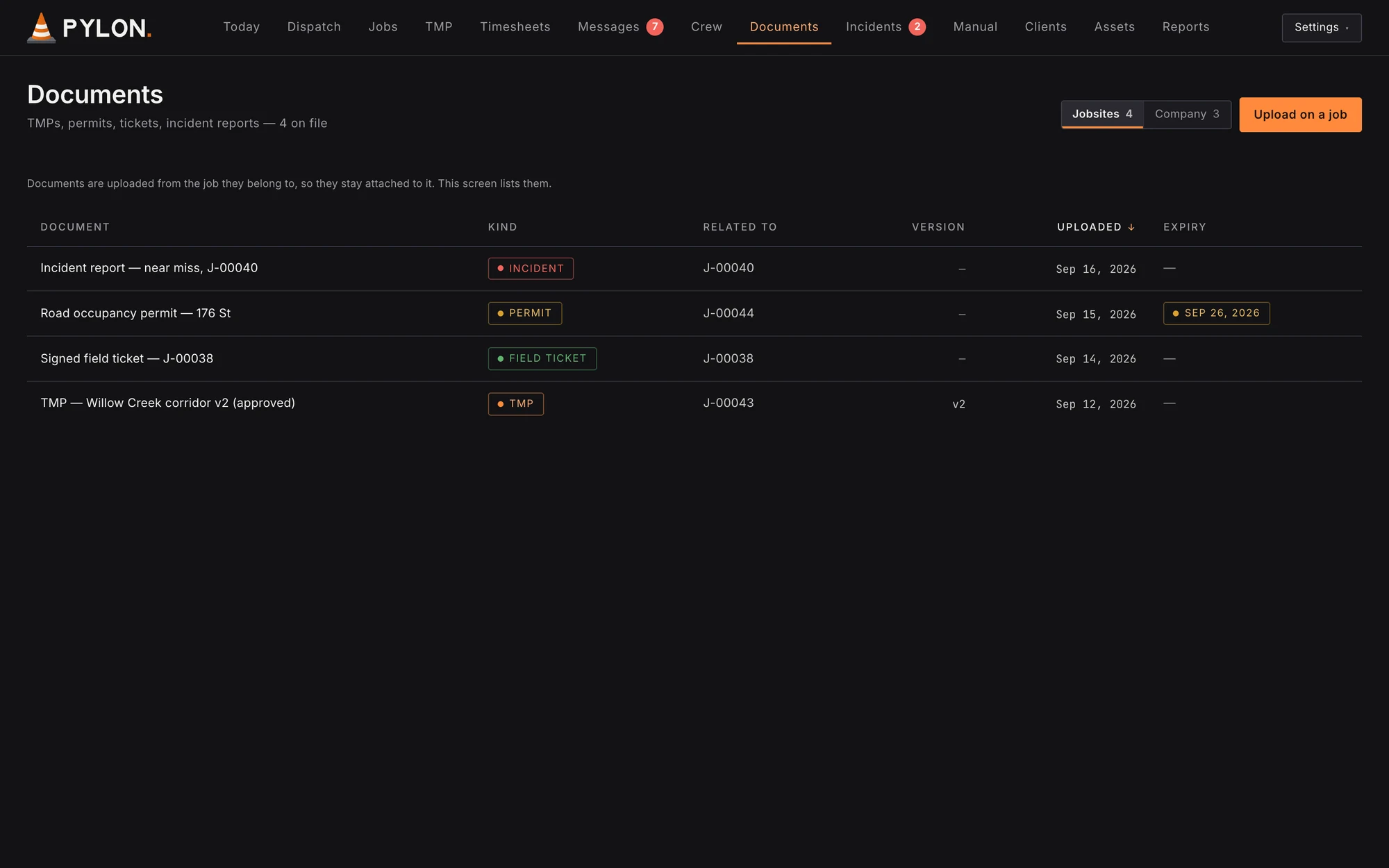
    Incident reports are filed on their job, in the same place as its plans, permits and signed tickets.

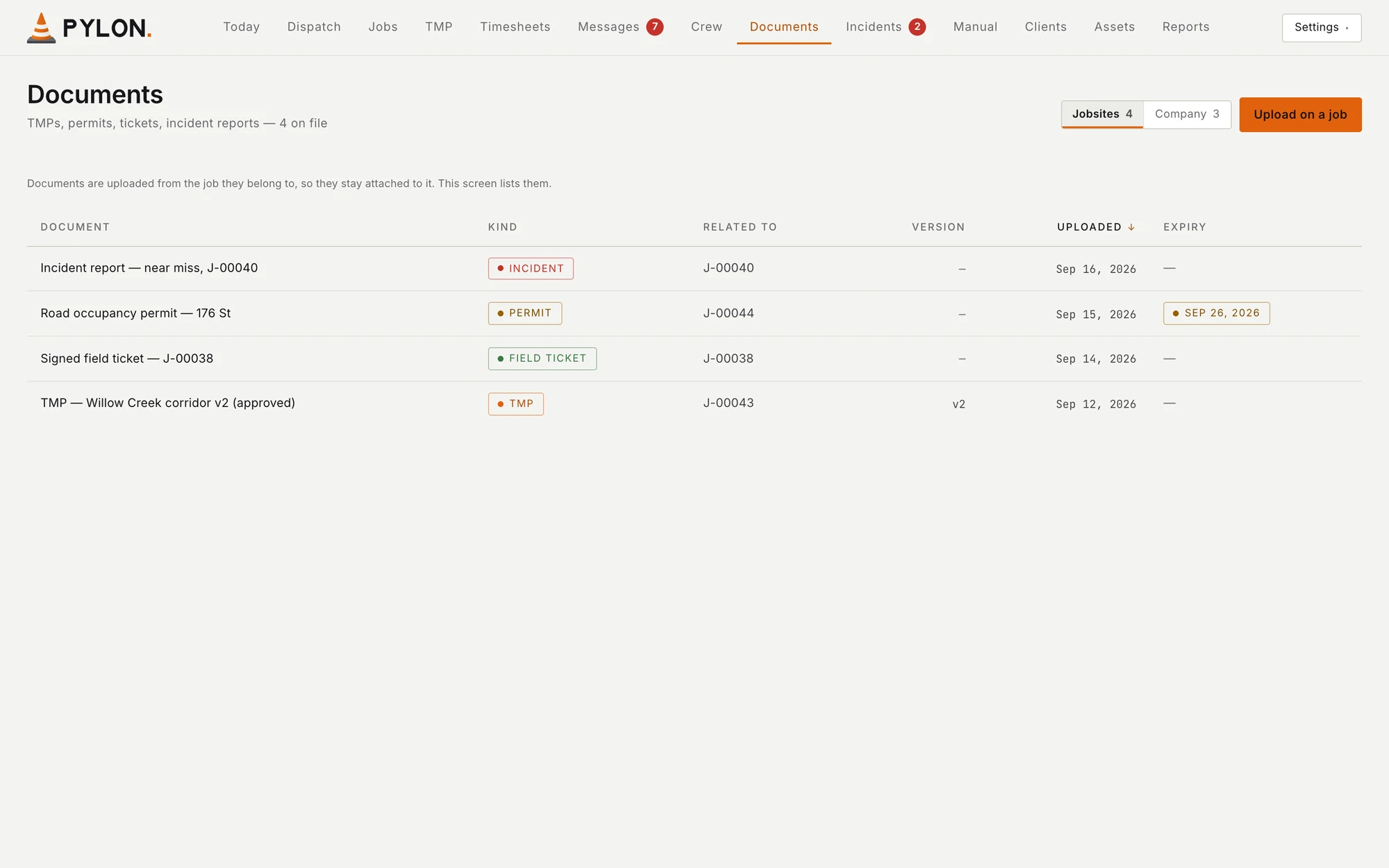
    Pylon Documents screen on a laptop, Jobsites side: an incident report, a road occupancy permit, a signed field ticket and a TMP, each listed with its job number. Sample data.
  2. 2 of 2

    Easy to find later.

    Look it up by job whenever a customer or an inspector asks.

    Pylon Documents screen on a laptop, Jobsites side: an incident report, a road occupancy permit, a signed field ticket and a TMP, each listed with its job number. Sample data.

Step 8Signed timesheetsOffice and crew

Hours signed before anyone leaves.

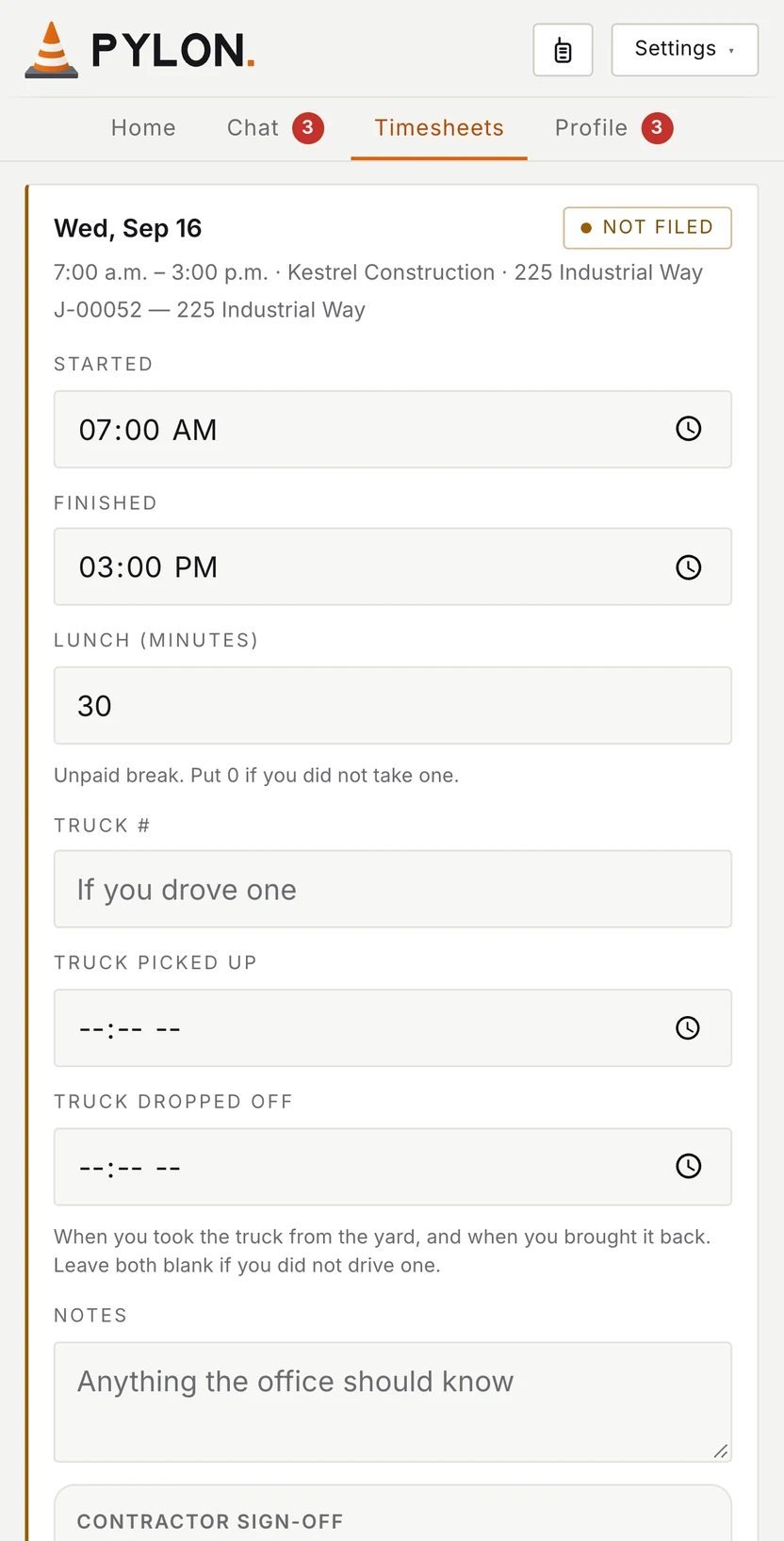
Crew fill in their hours on their phone, the customer signs right there, and approved hours are ready to bill.

Replaces paper timesheets and typing them in twice.

  1. 1 of 6

    Hours in, on the phone.

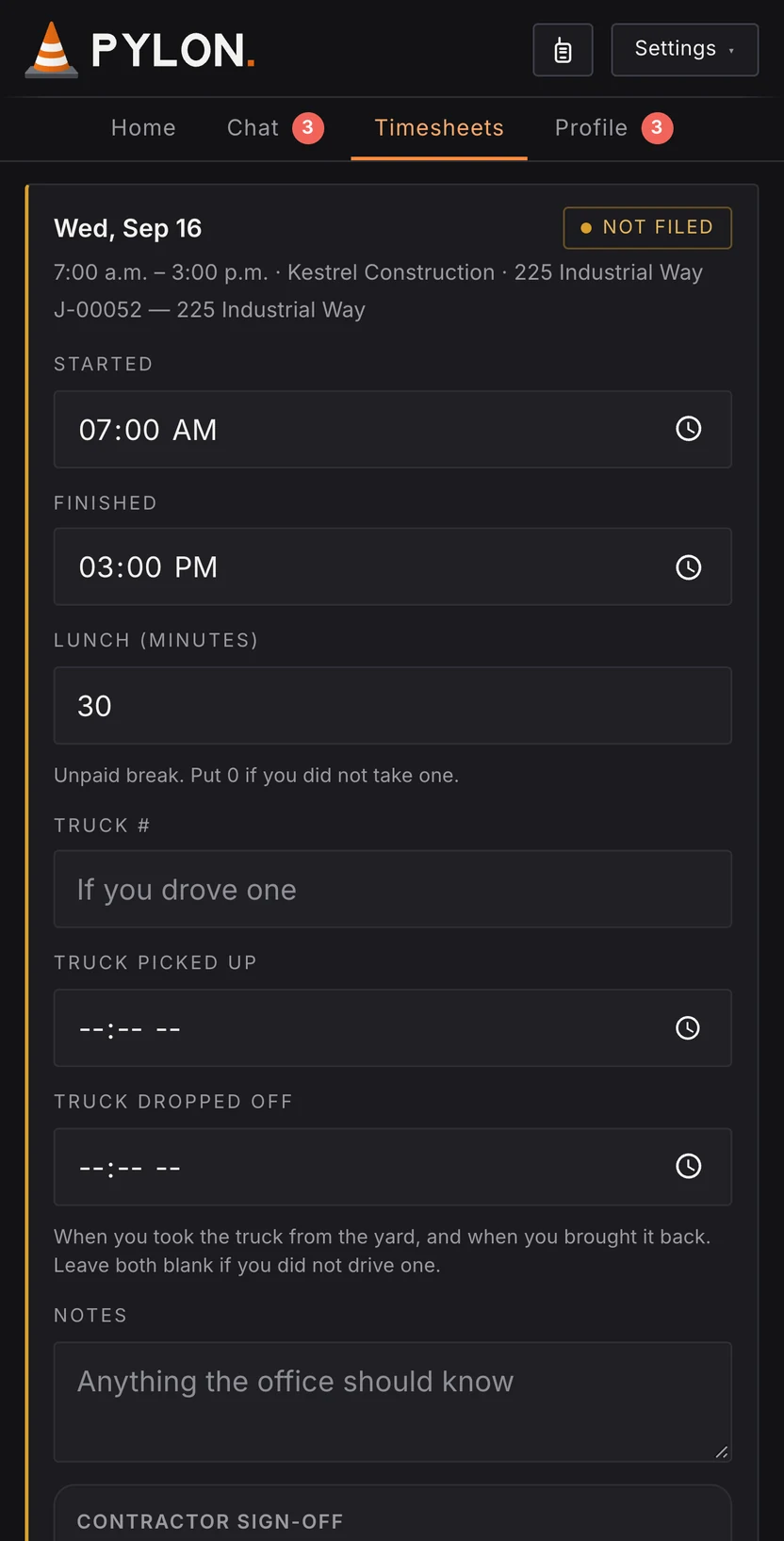
    Crew enter their start, finish and lunch right on the phone.

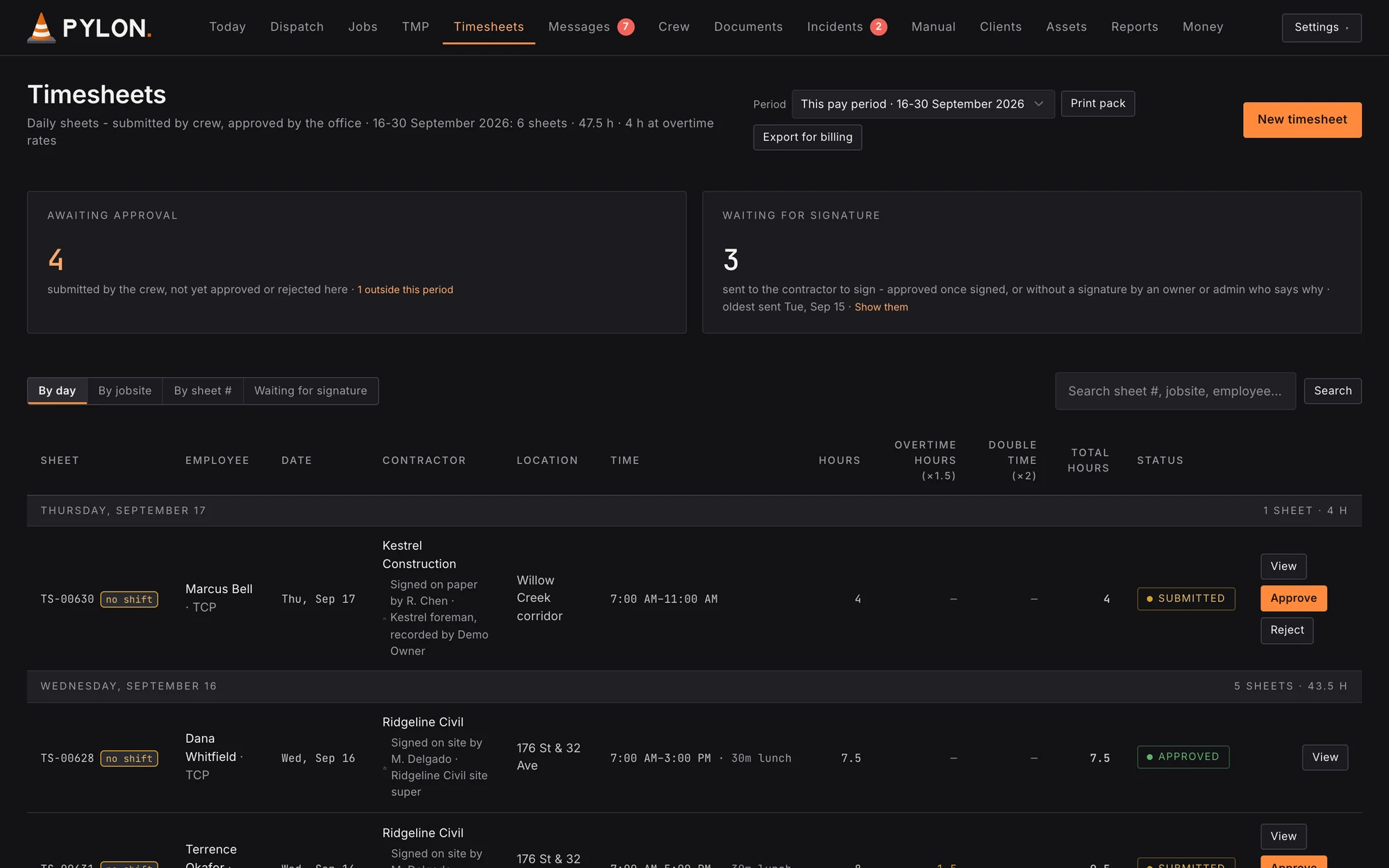
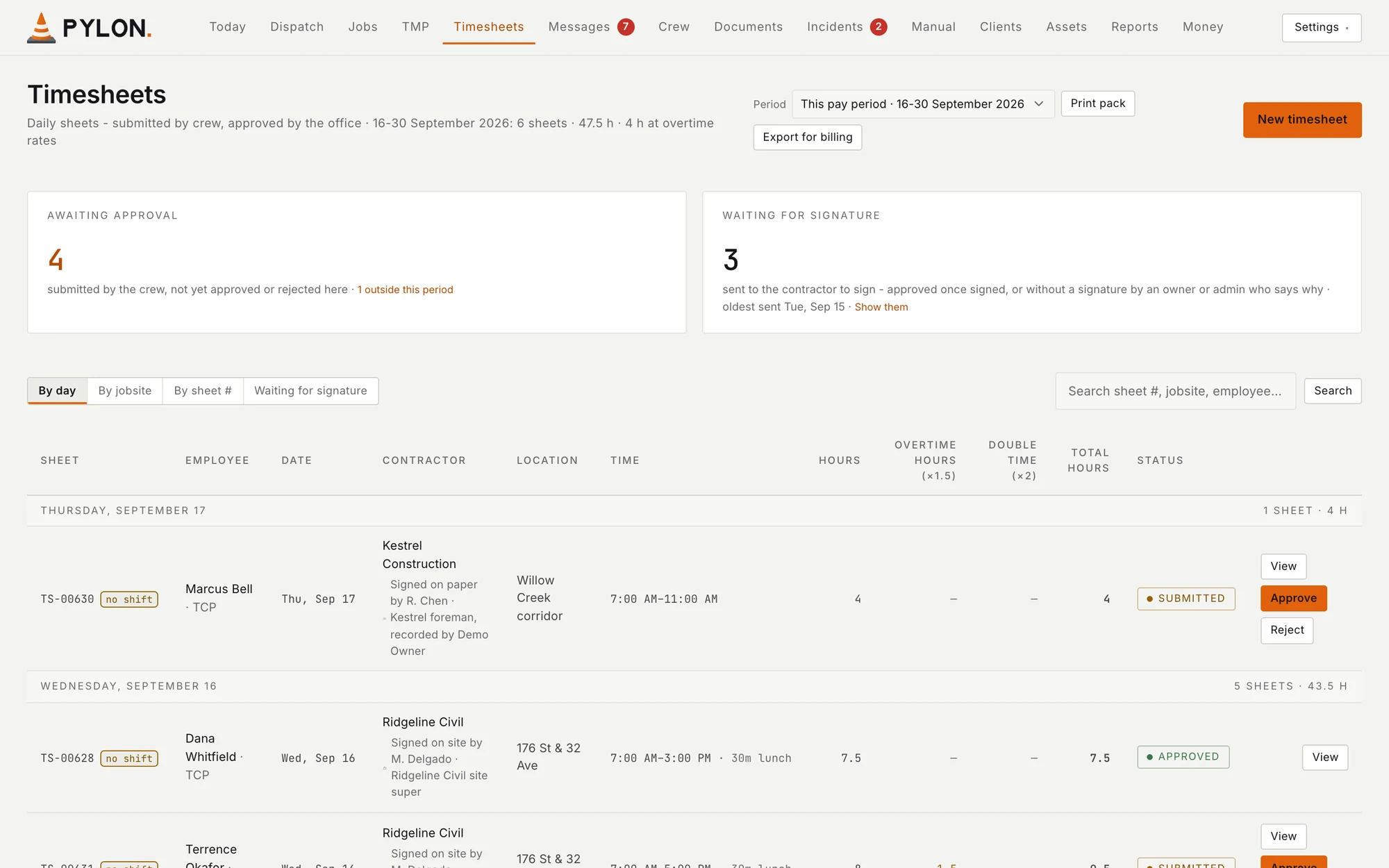
    The office Timesheets page for this pay period, with the count of sheets waiting for approval, the count waiting for the contractor's signature, and the list of daily sheets. Sample data. A crew member's phone showing a timesheet to fill in, with Started, Finished and Lunch already filled from the shift. Sample data.
  2. 2 of 6

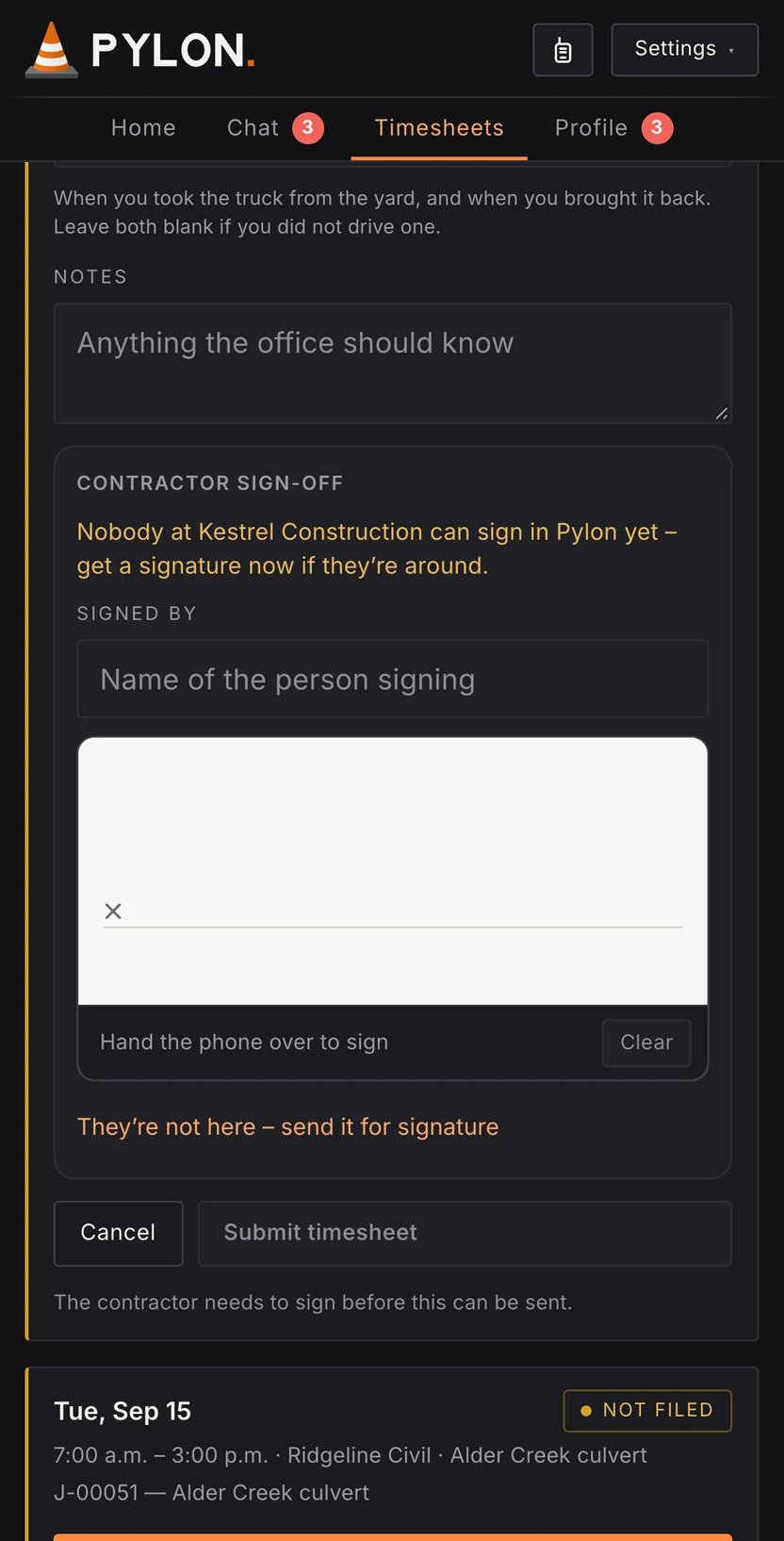
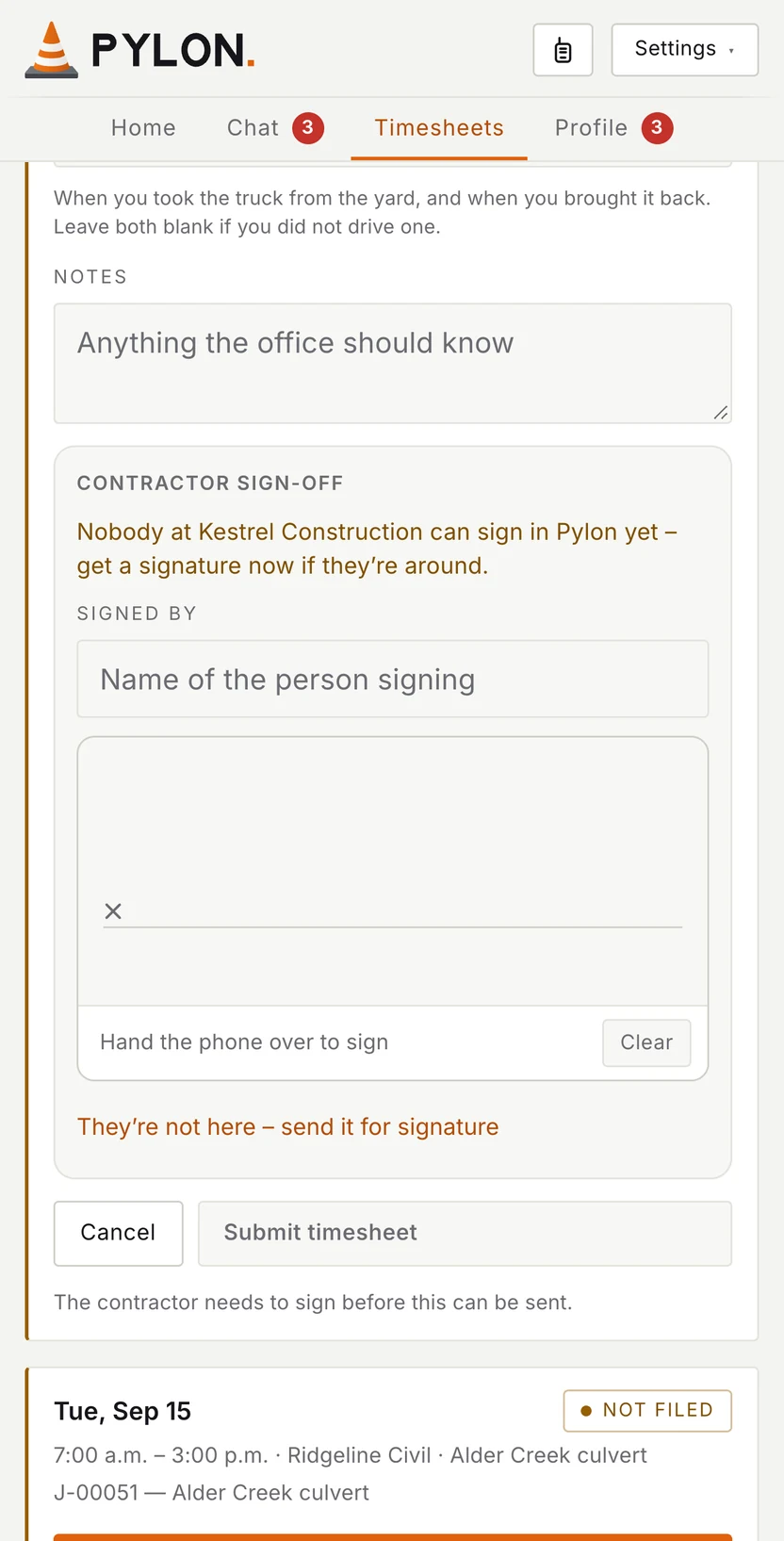
    Signed before anyone leaves.

    The customer signs right on the crew member's phone, or later from their own Pylon login.

    The office Timesheets page for this pay period, with the count of sheets waiting for approval, the count waiting for the contractor's signature, and the list of daily sheets. Sample data. The same timesheet on the phone scrolled down to Contractor sign-off: a note to get the signature now if the contractor is there, a Signed by name box, a signature pad that says Hand the phone over to sign, and a link to send it for signature instead. Sample data.
  3. 3 of 6

    Overtime worked out.

    Pylon works out each day's and each week's overtime for you.

    The office Timesheets list showing each daily sheet with its hours, overtime, double time, total hours, status, and Approve and Reject buttons. Sample data. A crew member's phone showing a timesheet to fill in, with Started, Finished and Lunch already filled from the shift. Sample data.
  4. 4 of 6

    Approve in the office.

    Check each sheet, then approve it or reject it.

    The office Timesheets list showing each daily sheet with its hours, overtime, double time, total hours, status, and Approve and Reject buttons. Sample data. A crew member's phone showing a timesheet to fill in, with Started, Finished and Lunch already filled from the shift. Sample data.
  5. 5 of 6

    Nothing slips through.

    See finished work that has no price on it yet.

    The Reports page with the Billing backlog panel listing completed jobs that have no price yet, each with its date and signed ticket status. Sample data.
  6. 6 of 6

    One file for QuickBooks.

    Approved hours come out with your prices on them, ready to bring into QuickBooks.

    The office Timesheets page with the Export for billing button under the pay period picker. Sample data.

What it saves

What you stop paying for. On your own numbers.

The software, the positions, the crew wages and the outside drafting Pylon does instead. Move the numbers to match your company.

Your company

Pylon needs one.

Only where the job doesn't call for an LCT.

Who you pay for today

Check the roles you're paying someone to do. Pylon handles them.

What you stop paying for

$31,743 a month

$380,914 a year · between $331,225 and $430,602

An estimate from the numbers you set, the wage ranges below and each company's published price on the date shown. Not a quote or a promise: your own costs and savings will differ.

  • Positions eliminated$22,058
  • Crew wages$6,048
  • Traffic plans$1,200
  • Software$2,437
  1. One dispatcher$6,488

    $35–40 an hour. Dispatch is fast enough in Pylon that one person runs the whole day.

  2. Invoicing$4,758

    $25–30 an hour. Timesheets are signed on site and priced by the app, so nobody retypes them into invoices.

  3. Drawing traffic plans$4,758

    $25–30 an hour. Plans are built in the app from the job's own details, so no one's job is drawing them.

  4. Compliance officer / CSO$6,055

    $30–40 an hour. Compliance is built into the app: every ticket, check and form is recorded as the work is done, with the date and the name.

  5. 3 setups a day at TCP pay$6,048

    $10–14 an hour less on each truck, where the job lets a TCP set up.

  6. 4 plans drawn outside$1,200

    $200–400 each, every month.

  7. Seven apps$2,437

    Podio, Invarion RapidPlan, Mitti (SafetyCulture), FlaggerLink, Connecteam, RAM Tracking and QuickBooks Time. What each one charges is below.

What each part of Pylon replaces, and what it costs today

Product names belong to their owners. Pylon isn't connected to any of these companies, and none of them has endorsed Pylon. Prices are as each company published them on the date shown.

Additional benefits. The ones that don't fit in a total.

In the office

  • Fill the day in one tap.

    Auto place puts the people who last worked each job back on it and fills the open seats most senior first. Add job carries yesterday's jobs onto today. You check it and send.

  • Traffic plans in minutes.

    Layout drops in a whole standard setup and Snap puts it on the road. Follow work area moves everything to fit around the work, and your own presets keep the setups you draw most.

  • Every version of every plan, kept.

    A plan changed on site becomes a new version, so you can reopen exactly what the city approved and show what was in force on any day.

  • The week on one page.

    Shifts with nobody on them, work that hasn't been billed and tickets about to run out, all in one report.

  • Learn it one part at a time.

    Walkthroughs run on the real screens. A dispatcher can learn dispatch without sitting through traffic plans.

On the road

  • Crews set up faster, and safer.

    Every sign and cone is on the crew's phone in the order it goes out, and turns green once it's placed. A newer TCP sets up the right way, and the office sees when it's done.

  • A walkie on every phone.

    Hold to talk to everyone on today's job, from the phone they already carry. It works while Pylon is open; the version that works with the phone locked comes with the App Store app.

  • Forms that fill themselves in.

    The FLHA and site inspection open with the job, site, client and PO already filled in. The crew only writes down what they see on the road.

  • Signed up at one toolbox talk.

    Print a sheet of login slips, one per person with their code and where to go, and hand them out at the yard.

  • No more lost timesheets.

    Hours go in on the crew's phone and are signed on site, so there's no paper sheet to lose in a truck, get rained on or turn up a week late.

Paperwork and pay

  • Tickets checked before anyone is sent.

    Dispatch flags anyone whose TCP ticket is missing or has run out, before they're sent.

  • Nothing lapses without warning.

    Truck insurance and registrations, gear and company documents each carry their expiry date, and the ones about to run out come to the top.

  • Incidents filed from the job.

    The crew reports from the shift, with photos, and the office closes it out for WorkSafeBC.

  • Hours, overtime and time off, worked out.

    BC's holidays and your own rates are applied to every day's hours, and your rest rule warns dispatch before anyone is booked. The crew put in their time off and the days they can work from their phone, and dispatch sees it before anyone is booked.

  • Paid sooner.

    The contractor signs the hours on site or from their own login, and the office approves them, so the invoice can go out the day after the work, not after the month is over.

How we worked it out
  • A full-time position is 173 hours a month. A setup is 8 hours, on 21 working days a month.
  • Each wage and price is a range. The big number uses the middle of each one, and the range is shown under it.
  • Software prices are each company's own published price, on the date shown. US-dollar prices are converted at the Bank of Canada's rate that day, about CA$1.40 to the US dollar. Where a price page shows no currency, the price is used as shown.
  • A TCP only runs a setup where the job doesn't call for a certified LCT.
  • This is what goes away, before Pylon's own monthly fee. We'll go through pricing on the call.

Your data

Your information stays yours.

Kept separate

Your company's information is walled off from every other company.

Records stored in Canada

Your company's records are stored in a database in Canada.

Every change saved

Pylon saves every change, so nothing quietly disappears.

Your rules

Set your own prices and rest times. Pylon works out each day's and each week's overtime for you.

Progress

Where Pylon is today. And what's next.

  1. September 2026

    In use at 2 BC traffic control companies

  2. Winter 2026–27

    Upload your crew list from a spreadsheet

  3. Winter 2026–27

    The first new companies join

  4. 2027

    Payroll export

Working today

  • Morning to-do list
  • Scheduling board
  • Fill the day, then send it to your crew
  • Carry jobs over to the next day
  • Traffic plans with PDF export
  • Crew phone app
  • Log setup, checks and take-down by phone
  • Set up from the plan: each sign and cone turns green once it's out
  • Timesheets signed on site, or from the customer's own login
  • Overtime hours and stat holiday billing
  • Billing file for QuickBooks
  • Tickets and training
  • Trucks, messages, reports and safety forms
  • Profit on every job, for the owner

Next steps

  • App Store approvalUnlocks:
    • Phone notifications for crew
    • See the traffic plan on the road in AR, through your phone's camera
    • A walkie in the crew app that keeps working when the phone is locked. Use it alongside your radios
  • Ministry permissionAsk BC's Ministry of Transportation and Transit for written permission to use its Traffic Management Manual in Pylon. The permission covers the manual, not your plans: you still send each plan to the Ministry or the city
  • Google Maps and WazeOffer road authorities a live feed of your work zones, only for jobs you choose to share, so map apps like Google Maps and Waze can warn drivers. We're also seeking to use Google Maps as our maps provider, and to give Google Maps and Waze that data directly
  • SOC 2 auditAn outside security audit (SOC 2): a licensed accounting firm checks how we protect your data
  • ISO 27001 certificationSecurity certification to ISO/IEC 27001, an international standard for running security: an accredited outside auditor certifies the company and checks again every year

Setting up to the plan

Coming soon: AR view for setup mode.

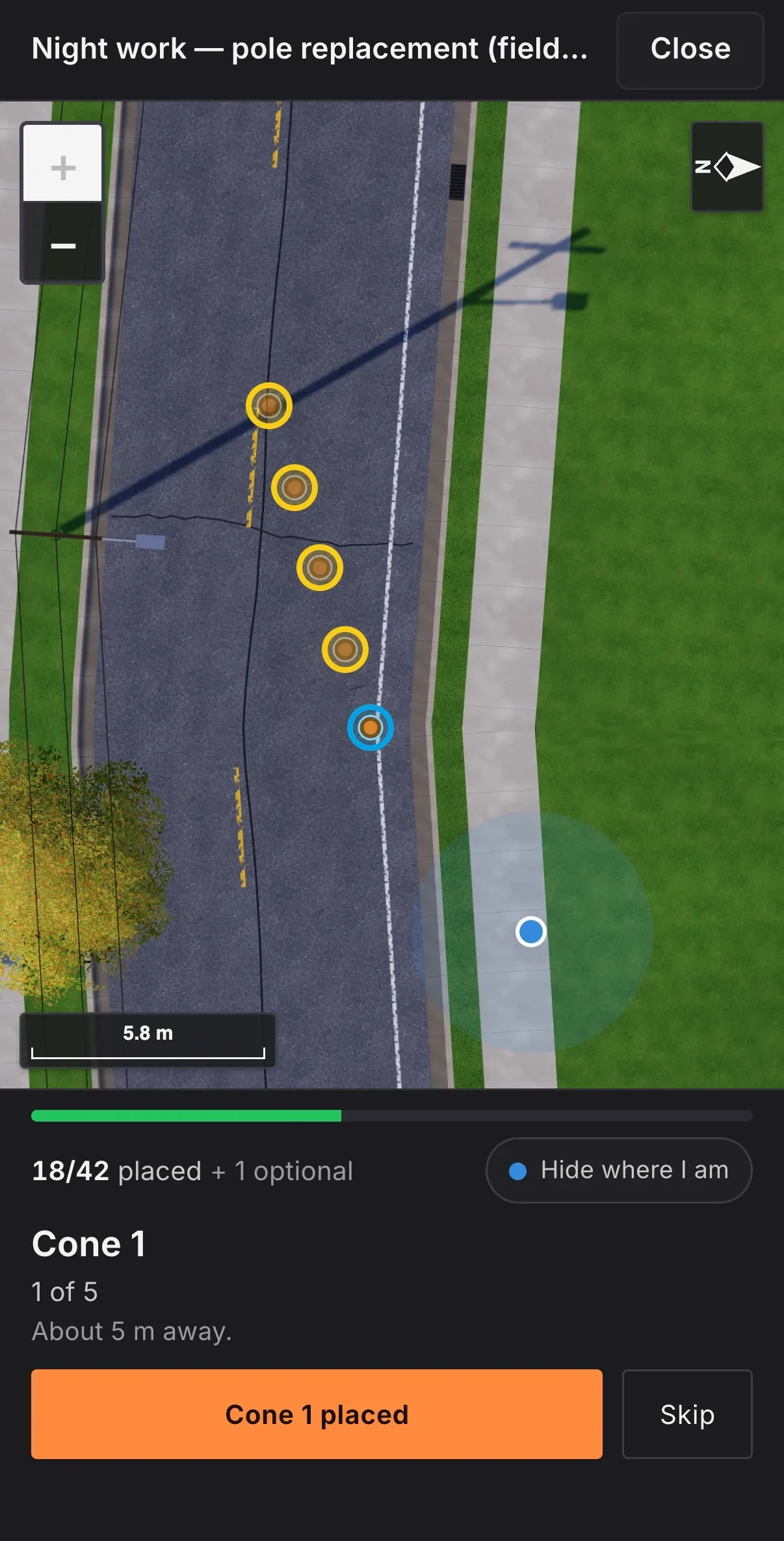
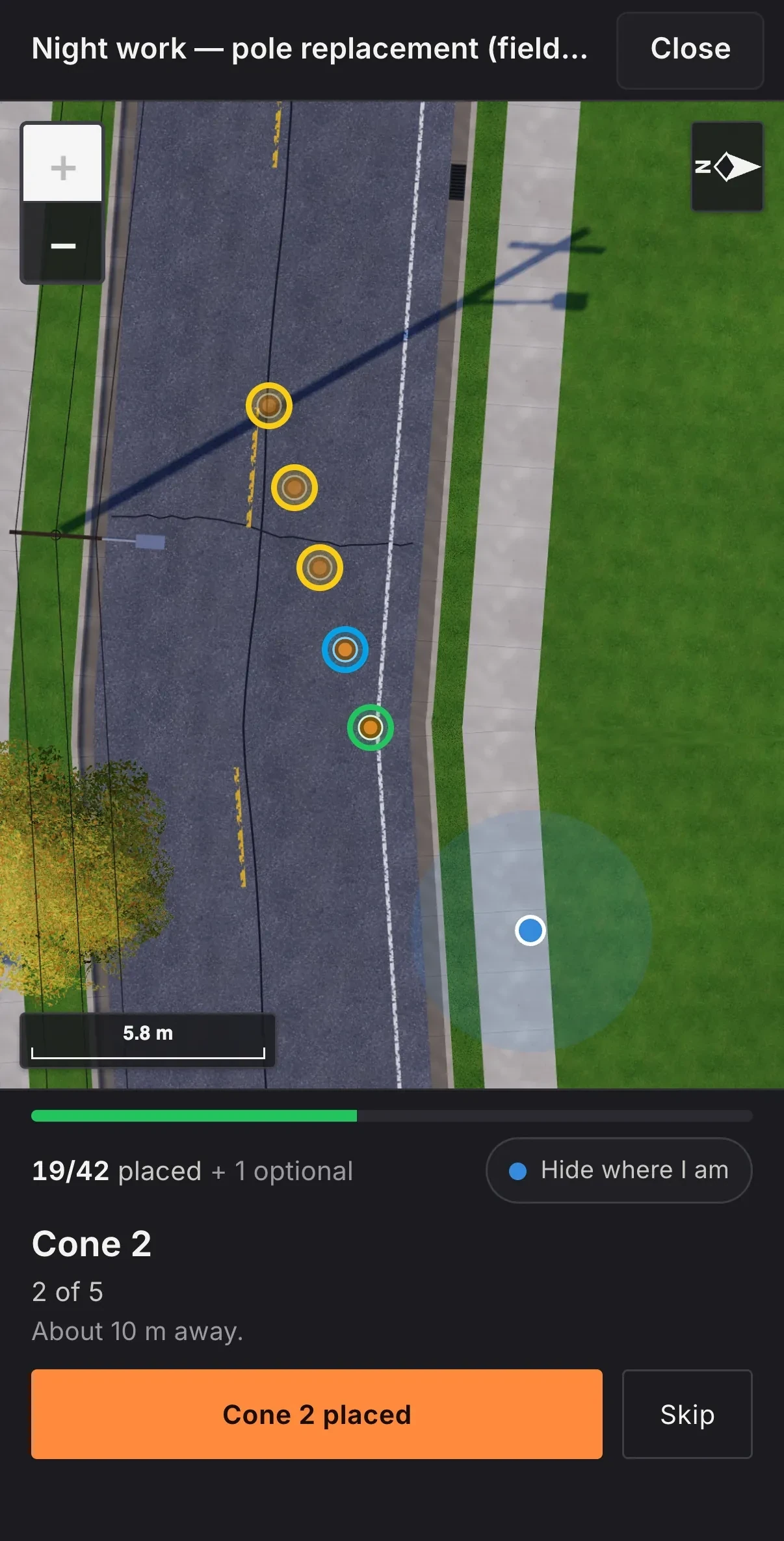
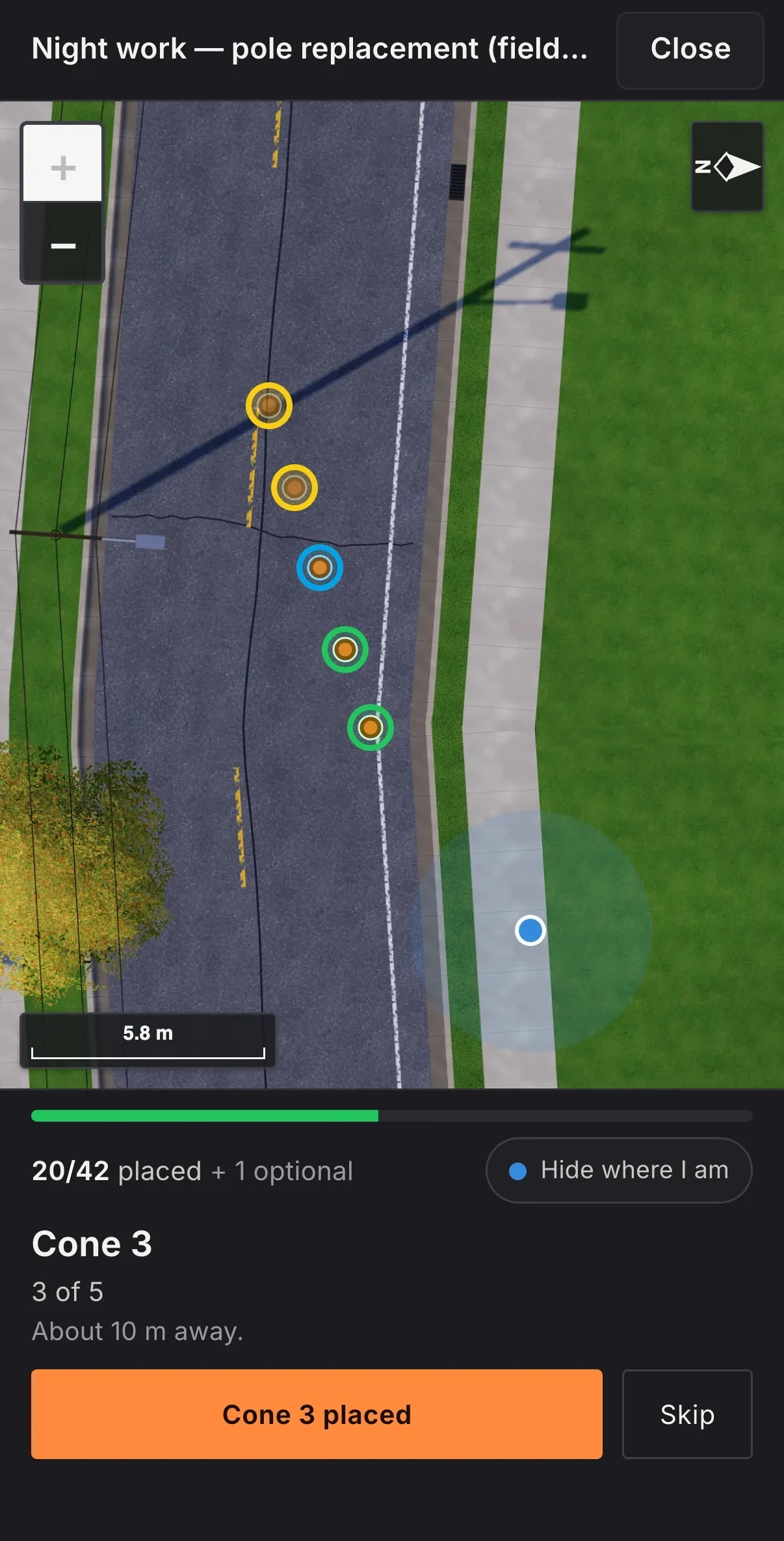
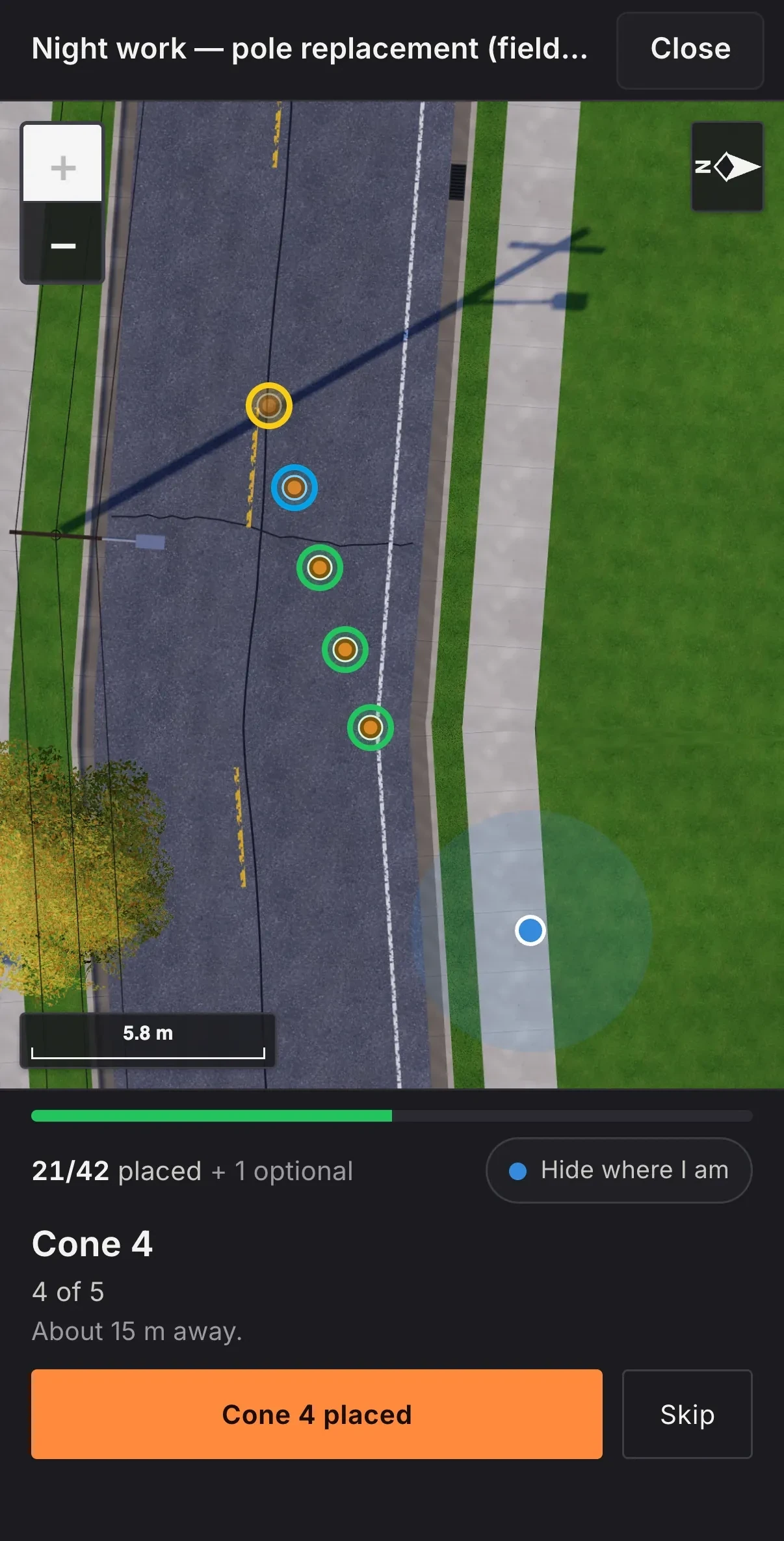
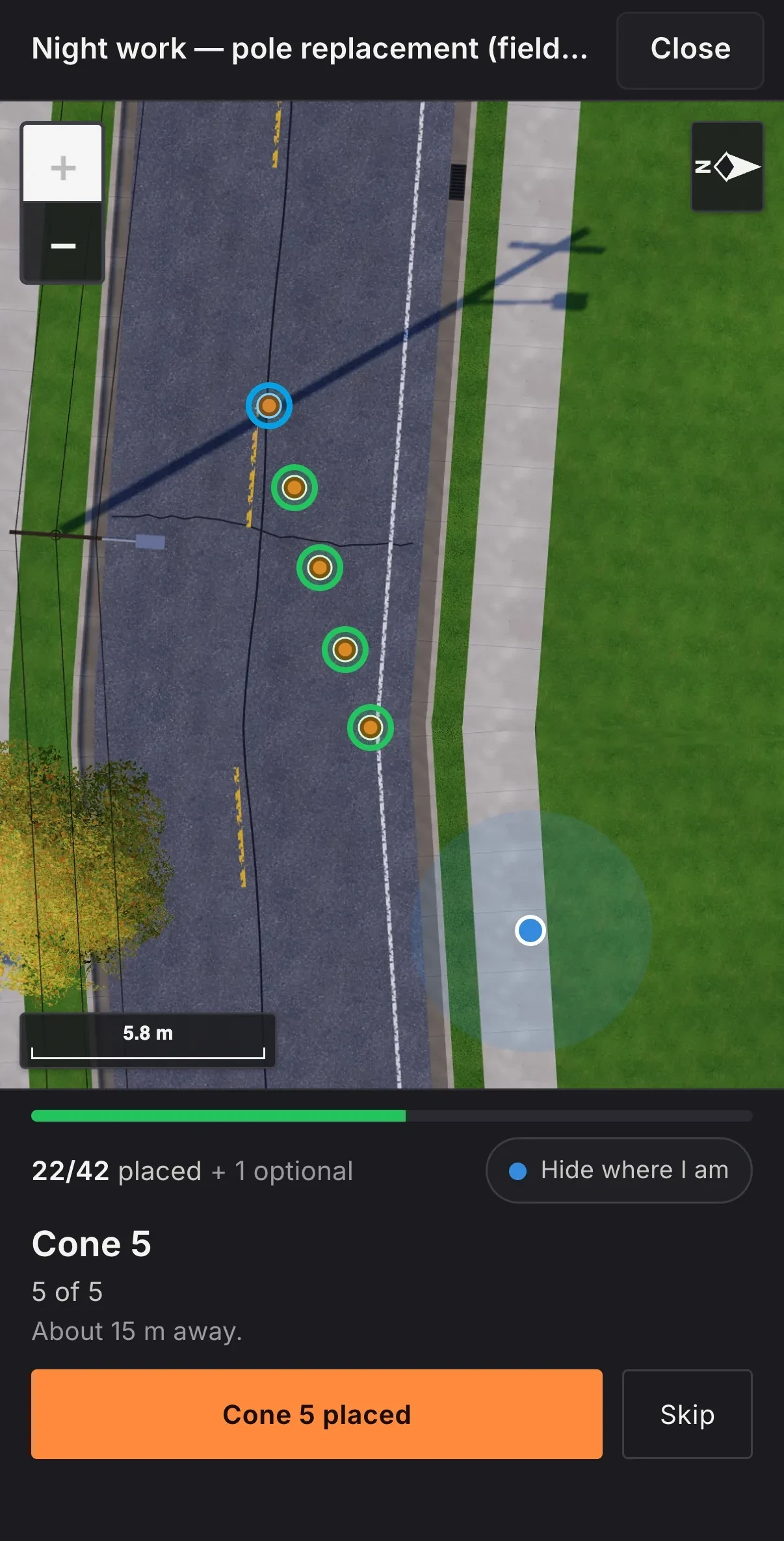
Every sign and cone on the plan shows up with a yellow ring. Put one out, tap it, and its ring turns green on every phone on the shift. When every ring is green, everything on the plan is out.

It takes the crew through the setup one device at a time, in the order they go out. They set up faster and safer, and a newer TCP learns to set up the right way while they do it.

Today that happens on the plan's map in the crew app. Next, it comes to the phone's camera in AR, with the plan drawn onto the road in front of you.

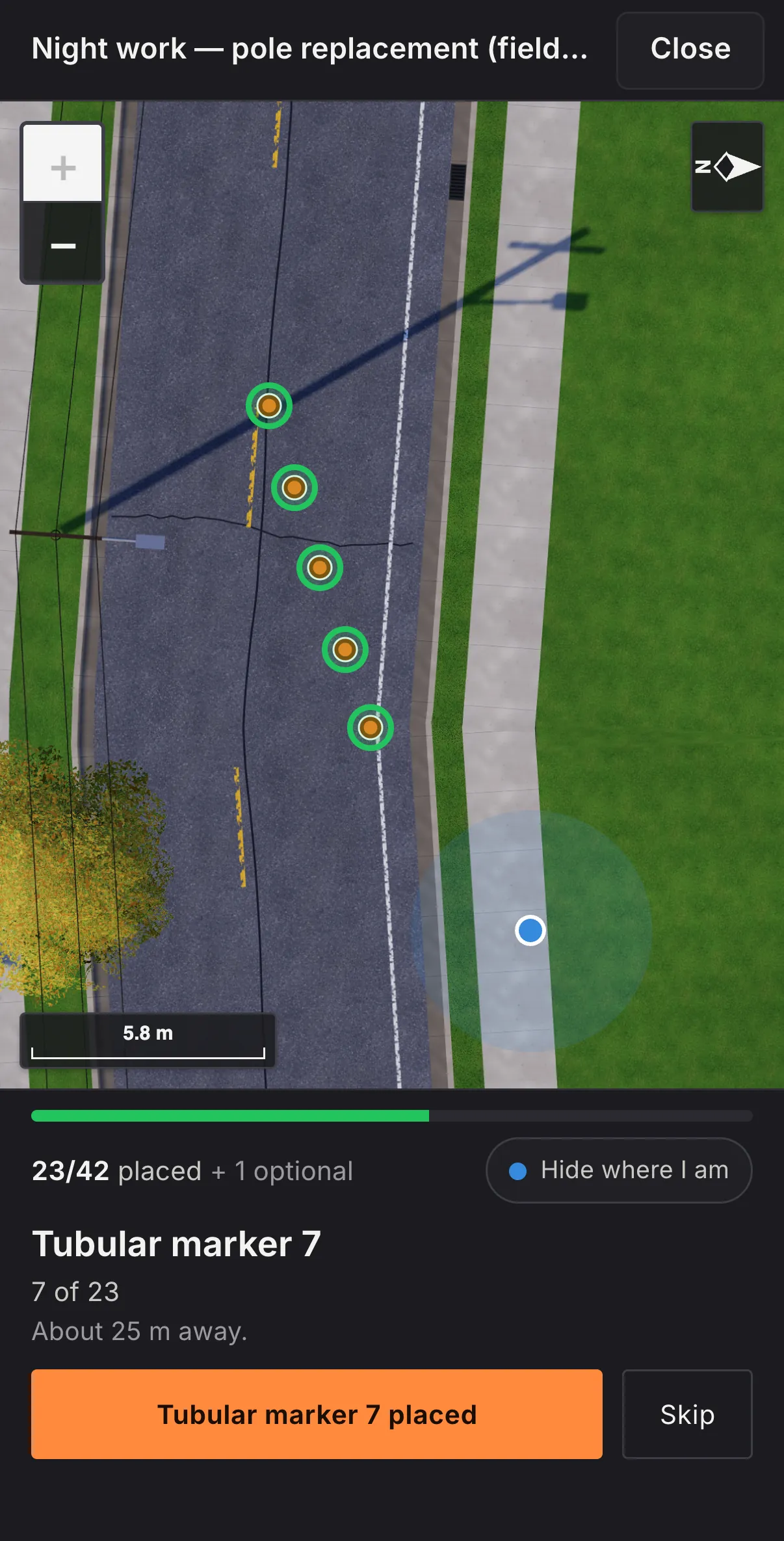
Try it: tap the orange button on either phone.Try it: tap the orange button, and switch between the map and the camera.

The Pylon crew app setting up a traffic plan on its map: 2 of the taper's 5 cones placed, their rings green, the rest yellow. Sample data.

Cone 320/42 placed + 1 optional

3 of 5 · About 10 m away.

Map view In the crew app today

Cone 320/42 placed + 1 optional

3 of 5 · About 10 m away.

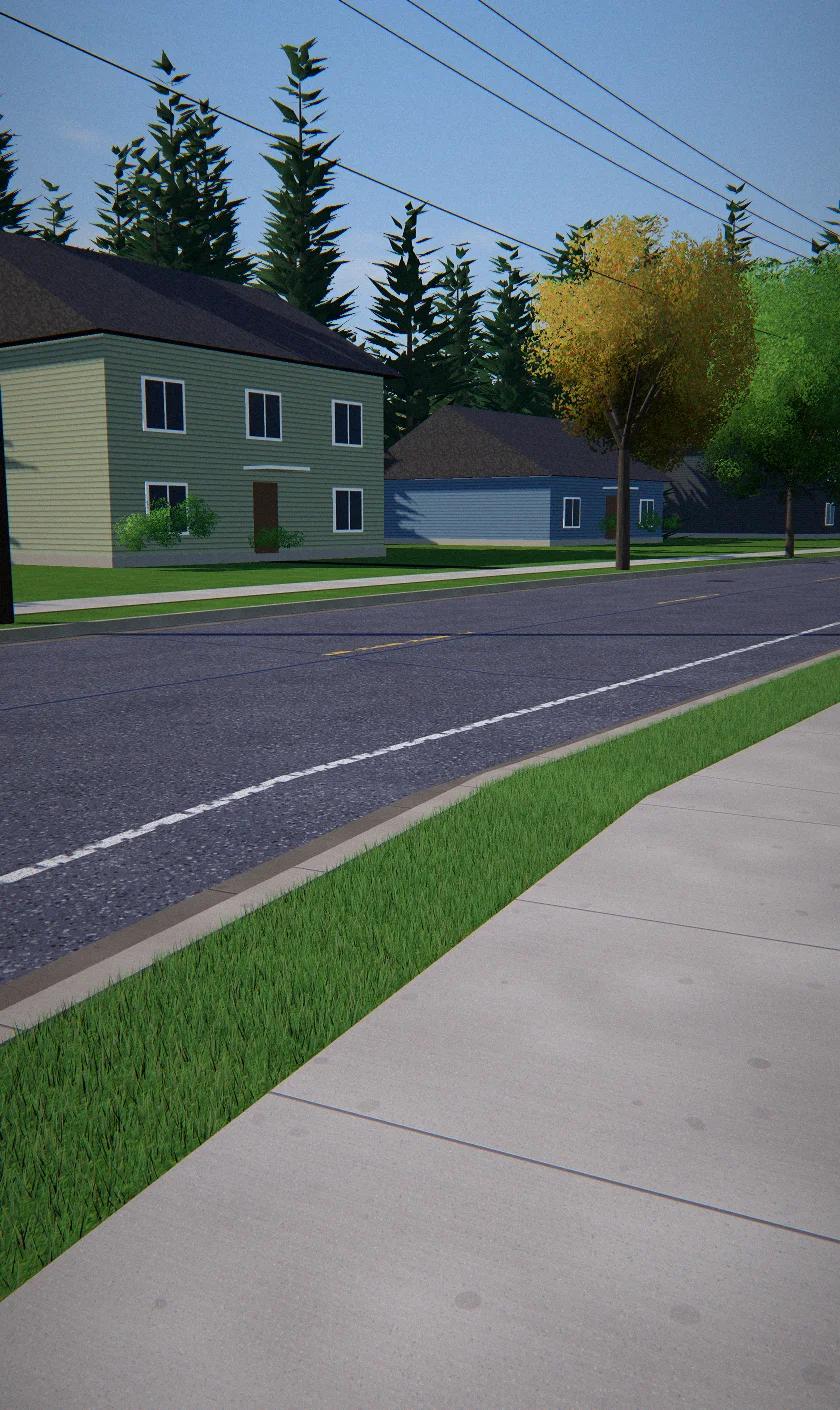
Camera view in AR Coming soon · preview

Founding Crew

Be one of the first companies on Pylon.

Up to ten BC traffic control companies start this winter and help decide what we build next.

Ask about joining

Questions

Good questions.

Does Pylon replace QuickBooks?

No. Pylon works out the hours and prices, then gives you one file to bring into QuickBooks. You keep sending invoices from QuickBooks like you do now.

Does my crew need to download an app?

Not today. It opens in the phone's web browser, and they can add it to their home screen so it works like an app. Phone notifications, the AR view and the locked-phone walkie will come in our App Store app.

Do you text my crew?

No. Everything happens in the app, so you can always see who was told and who answered.

Can my crew see my prices or customers?

No prices, and no customer list. Workers see their own shifts, who they're working with, their own hours, and the customer's name on shifts they've accepted.

How do I get my crew list in?

Right now we add it with you. Uploading from a spreadsheet is coming this winter.

Where is my data kept?

Your company's records are stored in a database in Canada. Two services that run Pylon, the web host and the email sender, handle some of it in the United States. Your company's information is kept separate from every other company's.

Can a new company use the traffic plans right away?

Traffic plans open to new companies once BC's Ministry of Transportation and Transit gives written permission to use its manual. Everything else works from day one.

Does Pylon approve my traffic plan?

No. Pylon draws the layout. You still send your plan to the Ministry or the city for acceptance, like you do today.

Do you have SOC 2 or ISO 27001?

Not yet. We will only say we have one after an outside auditor has checked us. SOC 2 is a report from a licensed accounting firm on how a company protects the data it holds. ISO/IEC 27001 is an international standard for running security: an accredited auditor checks the company, gives it a certificate if it passes, and checks again every year.

Does HIPAA apply to Pylon?

No. HIPAA is a US law for doctors, hospitals, health insurers and the companies that handle patient records for them. It doesn't cover traffic control companies or Pylon. In BC, the main law for your crew's information is BC's Personal Information Protection Act.

Does it work outside BC?

Pylon is built for British Columbia today, including BC's holidays. Other provinces will come later.

How much does it cost?

We'll go through pricing on the call. There's a set monthly fee, plus an amount for each worker you put on a shift that month, so your bill goes down in the slow season.

Can I sign up myself?

No. Every company starts with a quick call, so we can help you get set up properly.

Book a demo

See Pylon in action. We'll walk you through a full day.
Leave your details and we'll set up a call.
  1. Tell us how you work

    Your whiteboard, your texts, your paperwork.

  2. See a day on Pylon

    Every step, from booking a job to billing it.

  3. Decide if it fits

    No pressure. We'll tell you what's ready and what's coming.

Rather watch first?A day on Pylon, in 75 seconds.

We'll only use this to reply to you. How we handle it